
Rabby’s transaction previews are the reason a lot of people switch to it, and pairing it with a Ledger means you keep those previews while the keys sit on hardware that never touches the internet. Once you’ve worked through this guide, your Ledger address will live inside the Rabby extension. Nothing leaves it until you press a button on the device.
It’s quick. You’ll want a Ledger you’ve already set up with a PIN, a computer running Chrome, Brave or Edge, and the cable from the box. Phone users aren’t left out: Rabby Mobile pairs over Bluetooth, and we get to that after the desktop steps.
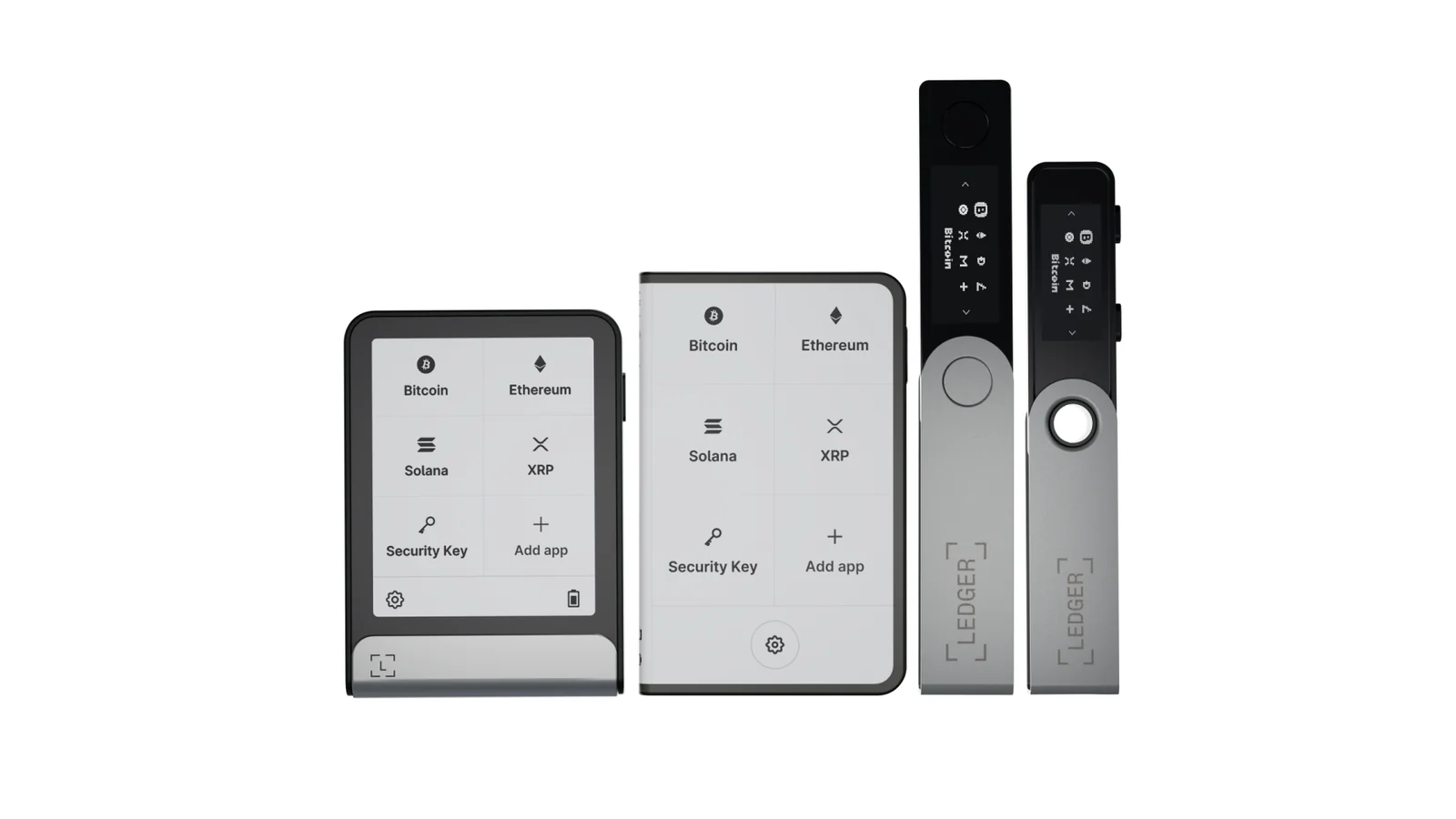
Table of contents
What You’ll Need Before Connecting Ledger to Rabby
- A Ledger that’s been through its first setup, so it has a PIN and you’ve copied the 24-word recovery phrase onto paper. Still in the box? Our Ledger Nano X setup guide walks you through that part.
- Ledger Wallet installed on the computer. It’s the app that used to be called Ledger Live, and you’ll only need it briefly, to update Ledger OS and add the Ethereum (ETH) app.
- Chrome, Brave or Edge as your browser, since there’s no Rabby for Firefox.
- Whatever USB cable shipped with the Ledger.
- A little of the chain’s own gas token for a test run, ETH if you’re on Ethereum.
Please don’t skim this bit. Crypto sent to a wrong address, or pushed over the wrong network, is lost for good, and there’s no one who can pull it back. Rabby’s own help centre is blunt about it: once a transaction confirms, neither Rabby nor anybody else can cancel, refund or revert it.
Keep in mind that Rabby sticks to EVM networks, meaning Ethereum and the chains built to be compatible with it. Your Bitcoin, Solana and Tron balances will stay in Ledger Wallet. Nobody on those networks can send to a Rabby wallet address, either.
How to Connect Ledger to Rabby, One Step at a Time
Step 1. Bring Ledger OS and the Ethereum App Up to Date
Plug the Ledger in and launch Ledger Wallet. For any third-party wallet, Ledger wants you on the newest Ledger OS and the newest Ethereum (ETH) app.
No Ethereum app on the device yet? You’ll find it in My Ledger.
Then quit Ledger Wallet. If you own a second hardware wallet, unplug it too, because Ledger says having several devices connected at the same moment can cause conflicts.
Step 2. Get the Rabby Extension From rabby.io

Grab Rabby from rabby.io and install it in Chrome, Brave or Edge. You don’t have to go looking for the setup screen, because it pops up by itself once the install finishes.
We’d type rabby.io by hand or keep it bookmarked. According to Rabby, scammers pay for “Sponsored” search results that point to cloned wallet sites, and any so-called Rabby add-on in Firefox’s store is fake and malicious.
Step 3. Tell Rabby You’re Bringing a Ledger
Click “I already have an address” on the welcome screen. Next comes “Hardware Wallet”, and after that “Ledger”. Steer clear of “Create a new address”, which would spin up a separate 12-word software wallet that has nothing to do with your Ledger.
If Rabby’s been on your machine for a while, the route’s slightly different. Hit the address selector along the top of the extension and then the “Add” button in the top-right corner, and pick “Connect Hardware Wallets” followed by “Ledger”.
Step 4. Pick a Password for Rabby
New installs ask for a password at this point. What it does is lock the extension and encrypt the data Rabby keeps on this computer. Your Ledger’s keys don’t depend on it at all, since they stay on the device.
Write it down somewhere sensible. Rabby keeps no copy, so losing it means resetting Rabby, choosing a fresh password, and pairing the Ledger all over again.
Step 5. Get the Ethereum App Open on the Ledger

Plug in the cable and enter your PIN. On the device, launch the Ethereum app and hold on until “Application is ready” shows up.
Don’t hurry past it. With the device locked or the app closed, your browser won’t see a thing when Rabby asks it to look.
Step 6. Let the Browser Talk to Your Ledger
Switch back to Rabby and hit “Allow”. A small browser window lists the USB devices it can see; click your Ledger there, then “Connect”.
That’s the connection made. A success page confirms the Ledger address has been added, and because Rabby scans its integrated networks on its own, your tokens, NFTs and DeFi positions fill in without you importing anything.
Step 7. Pull In Extra Ledger Addresses
Want more than one? From the success page, click “Add more addresses from Ledger” and pick whichever you need.
An account you’ve used in the past might not be in the list. That’s what “Advanced settings” is for: you can switch the HD path (the rule a wallet follows to generate addresses from one seed), or push the starting serial number along to reach addresses past the first 50.
Step 8. Run a Small Test Before Anything Big
Hit “Receive” on Rabby’s home screen and you’ll get a QR code plus your public address. It’s one address for every EVM network Rabby covers. Send yourself a small amount to it before trusting it with more.
Next, move some of it back out: “Send”, then “Select Address”, then “Select Token”. Rabby previews how your balance will change, and the Ledger wants your approval on its own display.
Your monitor can lie. The Ledger’s screen can’t be tampered with in the same way, so compare the address there and reject anything that doesn’t match.
Pairing Your Ledger With Rabby Mobile Over Bluetooth
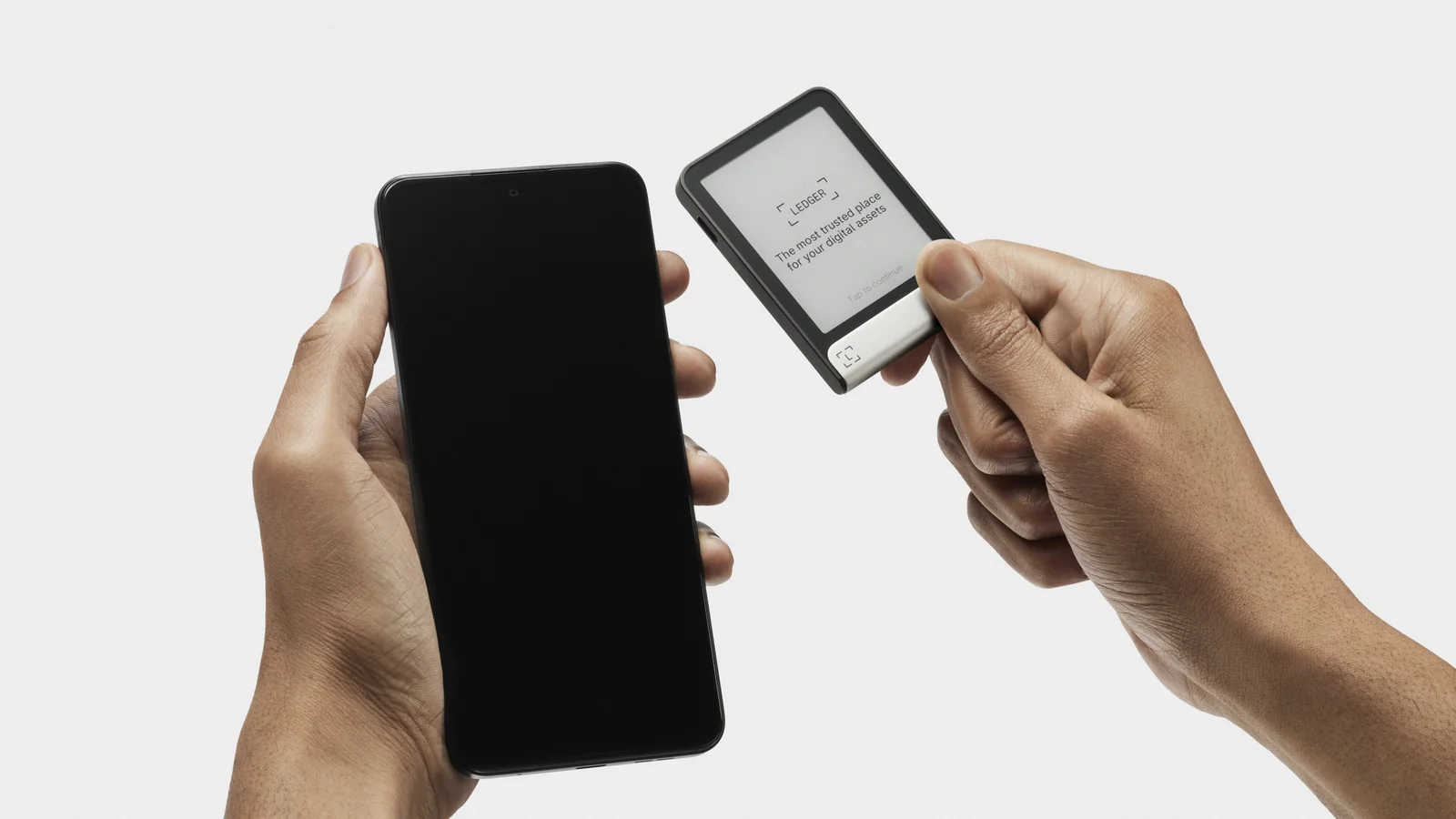
On a phone, Rabby talks to the Ledger over Bluetooth, whether you’re on iOS or Android. Going by Ledger’s spec sheets, that works for the Nano X, Nano Gen5, Flex and Stax, which all have Bluetooth. The Nano S Plus is USB-C only, and Ledger states it doesn’t work with iOS devices, which is a shame for iPhone owners who bought the cheap one.
- Install Rabby Mobile using the download link on rabby.io.
- Choose “I already have an address”, then “Hardware Wallet”, then “Ledger”.
- Pick a password, and don’t lose it, because on a phone the only fix is reinstalling Rabby.
- Switch Bluetooth on, unlock the Ledger, and tap it when it appears in the app.
- Want extra addresses? “Import more wallets” on the success page handles that.
Got Rabby Mobile running already? Look for the “Add Wallet” icon at the top right of the home screen, and go from there to “Connect Hardware Wallet” and “Ledger”.
Rabby and Ledger Settings We’d Change
We pulled all of these from Rabby’s and Ledger’s own help pages in September 2026.
| What it is | Where you’ll find it | Our take |
|---|---|---|
| Blind signing | Inside the Ethereum app’s settings, on the Ledger itself | Switch it on for a dApp that needs it and back off when you’re finished |
| Password for non-whitelisted transfers | In Rabby’s Settings | Worth enabling, so sending to an unfamiliar address asks for your password |
| Whitelist | On Rabby’s Send screen | Put the addresses you use regularly on it |
| Connect Rabby by Disguising as MetaMask | In Rabby’s Settings | Handy for sites that only offer a MetaMask button |
| Advanced settings (HD path) | In the list of Ledger addresses inside Rabby | Leave it alone unless an old account has gone missing |
| Gas preset | On Rabby’s signing screen | Normal suits most sends, and Fast is there for when timing matters |
Blind signing is the one people ask about. Ledger’s line is that you need it to sign most smart contract transactions with an Ethereum dApp. If you’ve got a Ledger Stax, Flex or Nano Gen5, open the Ethereum app, tap the wrench icon to get to App Settings, and flip the “Blind signing” toggle.
Afterwards, Ledger would like you to switch it off, and a firmware or Ethereum app update turns it off for you anyway. This is where Rabby earns its keep, frankly: its simulation spells out in plain words what the contract call does before you confirm on the device, which takes a lot of the blindness out of blind signing. Owners of other models can check Ledger’s blind signing article.
How Long Connecting Ledger to Rabby Takes
Hardly any time. Adding a Ledger address to Rabby happens off-chain, so there’s no gas to pay and no confirmation to wait for.
That test transaction is another matter. You’ll pay gas in the network’s native token, and how fast it lands depends on whether you choose Fast, Normal, Slow or Custom. When a send hangs around pending, “Speed Up” swaps in a copy with a higher fee under the same nonce, and only one of the two ever gets charged.
For swaps, Rabby folds a 0.25% service fee into the quote (that’s the rate in September 2026). GasAccount, the feature that lets one balance cover gas across networks, carries no extra fee according to Rabby.
When Your Ledger Won’t Connect to Rabby
- If the browser window comes up empty, the Ledger is probably locked or the Ethereum app isn’t open. Unlock it, launch the app, wait for “Application is ready”, and click “Allow” once more.
- Firefox won’t work, full stop. Move over to Chrome, Brave or Edge.
- Ledger Wallet left running, or a second hardware wallet still plugged in, can get in the way. Quit the app and pull the extra device out, as Ledger warns that multiple connected devices can clash.
- Missing an account you know exists? Open “Advanced settings” and try another HD path, or look past the first 50 addresses.
- Some sites don’t show Rabby as an option. Click their MetaMask button and Rabby’s pop-up will answer instead, and if even that fails, enable “Connect Rabby by Disguising as MetaMask” and reload the page.
- A greyed-out Sign button next to “Please process the alert before signing” means Rabby’s security engine spotted a risk. Read what it found, and think hard before reaching for “Ignore All”.
- “Gas balance is not enough” means you’re short of the native token on that particular chain. An Arbitrum transaction, for instance, needs ETH that’s sitting on Arbitrum.
- Stuck on pending? Try “Speed Up” or “Cancel” first, and if the transaction still hangs there, head to Settings and choose “Clear Pending Locally”.
- When the Ledger refuses a contract interaction, look at the blind signing toggle in the Ethereum app. Remember to switch it back off afterwards.
Safety Habits for Using Ledger With Rabby
- Always move a tiny amount first, then the rest.
- Read the address and the amount on the Ledger’s own screen, every time, before pressing approve.
- Address poisoning is real and it’s sneaky. A scammer drops a fake transfer into your history from an address that looks almost exactly like one of yours, betting you’ll copy it later, so don’t ever copy addresses out of your transaction history.
- Your Ledger’s 24-word phrase never goes into Rabby or into any website. Ledger says importing it into a software wallet turns the Ledger into a hot wallet, and Rabby says its support staff will never ask for your keys.
- Go through your token approvals now and then and revoke whatever you’ve stopped using. Rabby’s own suggestion is weekly, or after each transaction.
- If Rabby pops up “You haven’t sent to this address in 180 days”, stop and check the recipient again.
Ledger and Rabby FAQ
Can Rabby see or use my Ledger’s private keys?
No. They never leave the Ledger, and you approve every transaction on the device. Rabby’s job is showing balances and putting transactions together.
Will my Ledger model work with Rabby?
Ledger is on Rabby’s supported hardware list for both the extension and the phone app. Ledger currently sells the Nano S Plus at $59, the Nano X at $99, the Nano Gen5 at $179, the Flex at $249 and the Stax at $399, at the time of writing (September 2026). For Rabby Mobile you’ll need one with Bluetooth, which rules out the Nano S Plus.
Is there a way to use Rabby and a Ledger in Firefox?
Sadly not. Rabby only makes its extension for Chrome, Brave and Edge.
Will Rabby show the Bitcoin or Solana on my Ledger?
No. It’s an EVM-only wallet, so your Bitcoin, Solana and Tron stay in Ledger Wallet.
I forgot my Rabby password. Are my funds gone?
They’re fine, because they live on the Ledger rather than in Rabby. Rabby doesn’t keep your password, so you’ll reset the extension (or reinstall the phone app) and connect the Ledger again.
Does blind signing have to be on?
Sometimes. Ledger says most smart contract transactions with an Ethereum dApp need it, so switch it on for those and off again when you’re done.
The Short Version
Get Ledger OS and the Ethereum app current, shut Ledger Wallet, and install Rabby from rabby.io. From there it’s “I already have an address”, “Hardware Wallet” and “Ledger”, a password, the Ethereum app opened on the device, and the HID prompt allowed. Finish with a small test that you approve on the Ledger.
What you end up with is two separate checks on every transaction, Rabby’s preview on the computer and the Ledger’s own screen, and we like that combination a lot. Torn between wallet apps? Our Rabby vs MetaMask comparison lays out the trade-offs, while Ledger vs Trezor is the place to start if the device itself is still undecided.
This article is for general information only and is not financial, legal, or investment advice. Prices and features change; check the vendor’s official page before buying.