
Crypto holders are prime targets. Phishing scams, exchange hacks, and malware put your coins at constant risk, and the risk is highest when your keys live online.
In the first half of 2025 alone, hackers and scammers stole nearly $2.5 billion from crypto holders.
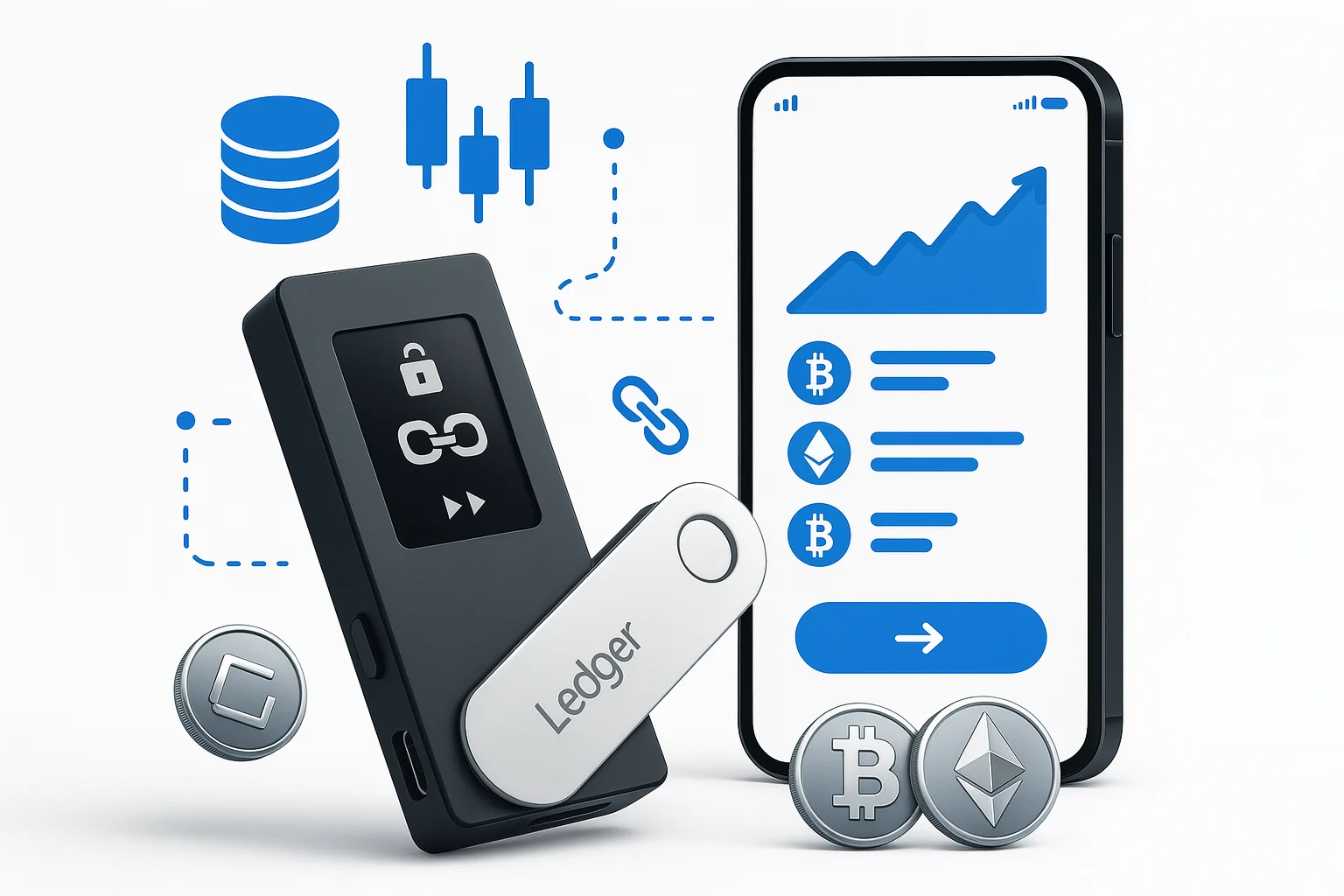
The Ledger Nano X is built to take you off that list. It is a hardware wallet that keeps your private keys offline, so a hacked exchange or infected laptop cannot reach them.
This guide walks you through how to set up a Ledger Nano X, from unboxing to sending and receiving your first crypto. No jargon, no guesswork: a secure setup you can finish in under 30 minutes.
Setting up a different model? Our Ledger Flex setup guide walks through that one step by step.
Table of contents
What You Need Before Getting Started
Gather these before you start, so you are not hunting for a cable halfway through:
- Ledger Nano X device (bought only from the official Ledger website).
- USB-C cable (included in the box).
- Smartphone or tablet with iOS 9+ or Android 7+.
- Ledger Live app, downloaded and installed.
- Pen and paper for your recovery phrase.
- Stable internet connection.
- 10-15 minutes of uninterrupted time.
Buy your Ledger Nano X directly from Ledger or an authorized retailer. Never buy from third-party sellers or marketplaces. A tampered device can hand a stranger your keys the moment you fund it. If you prefer a wallet app on your phone, see our pick of the top mobile crypto wallets for secure, on-the-go access.
Note: Images are sourced from the official Ledger Nano X setup video and Ledger’s official website.
Step 1: Unboxing and Initial Setup
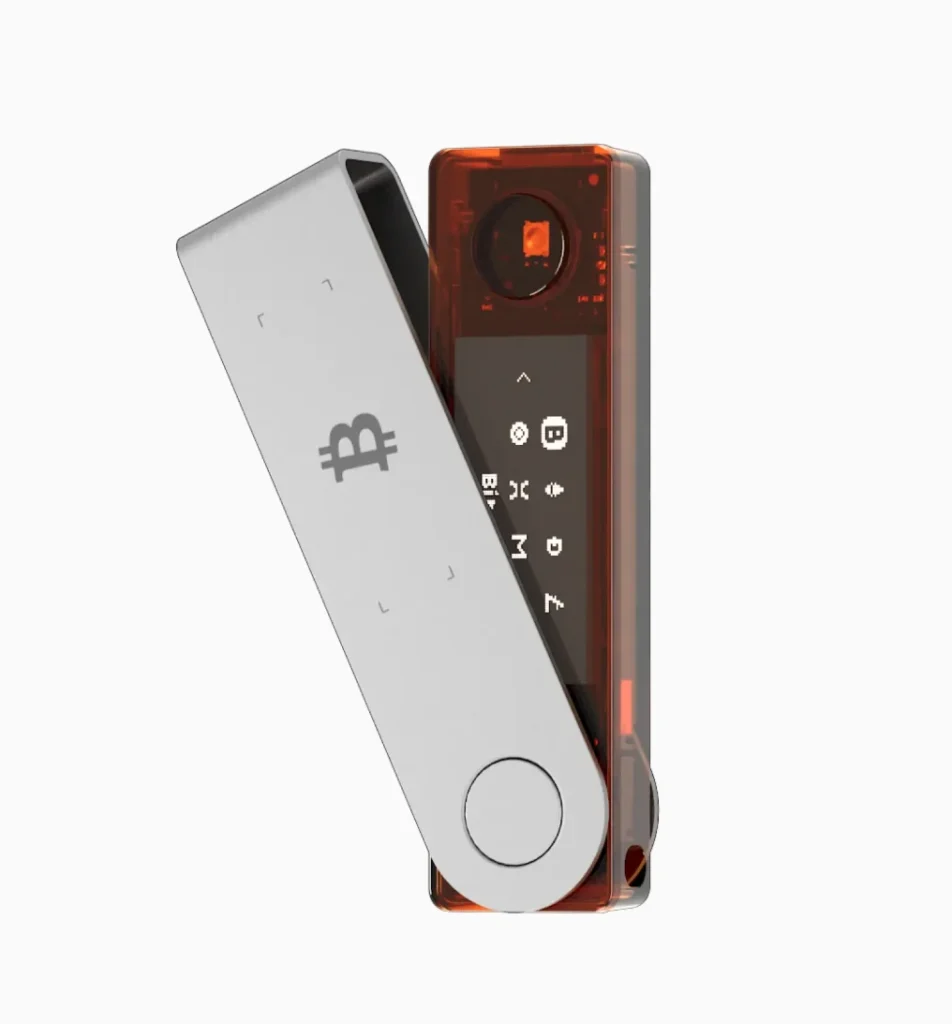
What’s in the Box
Your Ledger Nano X box should contain:
- Ledger Nano X device;
- USB-C cable;
- Quick start guide;
- Recovery phrase cards;
- Keychain and lanyard.
Powering On Your Device
- Peel the protective film off the screen.
- Press and hold the button next to the USB port for 3 seconds.
- Wait for the welcome screen.
- Use the two buttons on top of the device to move through menus.
The screen will show “Welcome to Ledger Nano X” and walk you through setup with on-screen prompts.
Step 2: Installing Ledger Live App
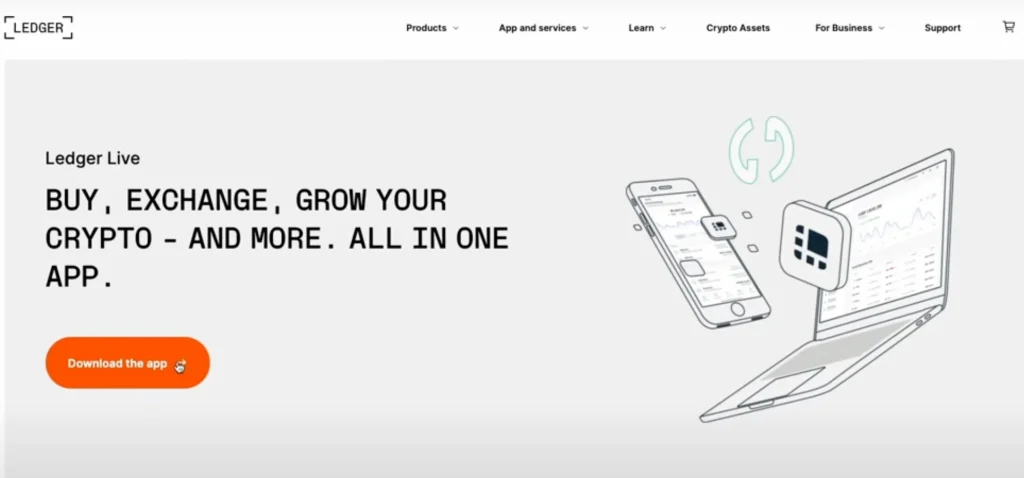
Download the Official App
- Go to the official Ledger website or your device’s app store.
- Search for “Ledger Live” and download the official app. Fake copies exist, so check the publisher is Ledger.
- Open the app and tap “Get Started.”
- Select “Initialize as new device.”
- Choose “Ledger Nano X” from the device list.
Enabling Bluetooth Connection
- Turn on Bluetooth on your phone.
- On your Ledger Nano X, go to Settings > Bluetooth.
- Press both buttons to enable pairing mode.
- Return to Ledger Live and tap “Continue.”
Step 3: Setting Up Your PIN Code
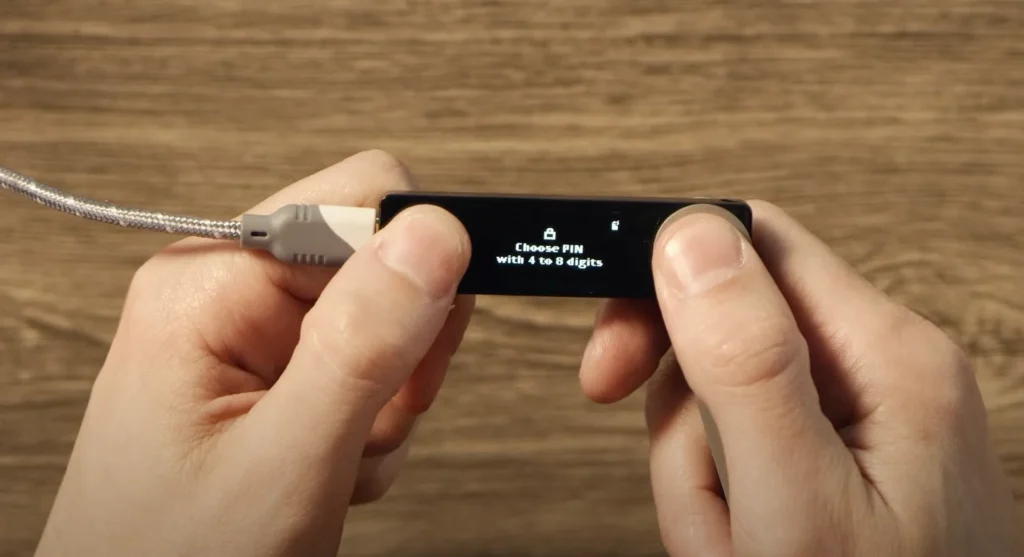
Creating a Secure PIN
- Choose a PIN of 4 to 8 digits.
- Skip obvious combinations like 1234 or repeated numbers.
- Use the two buttons to scroll to each digit.
- Press both buttons at once to confirm each digit.
- Enter your PIN again to confirm.
Your PIN is what stops someone who picks up your device from opening it. Pick one you will remember but others cannot guess. Avoid birthdays, addresses, and anything else a stranger could find out about you.
Step 4: Recording Your Recovery Phrase
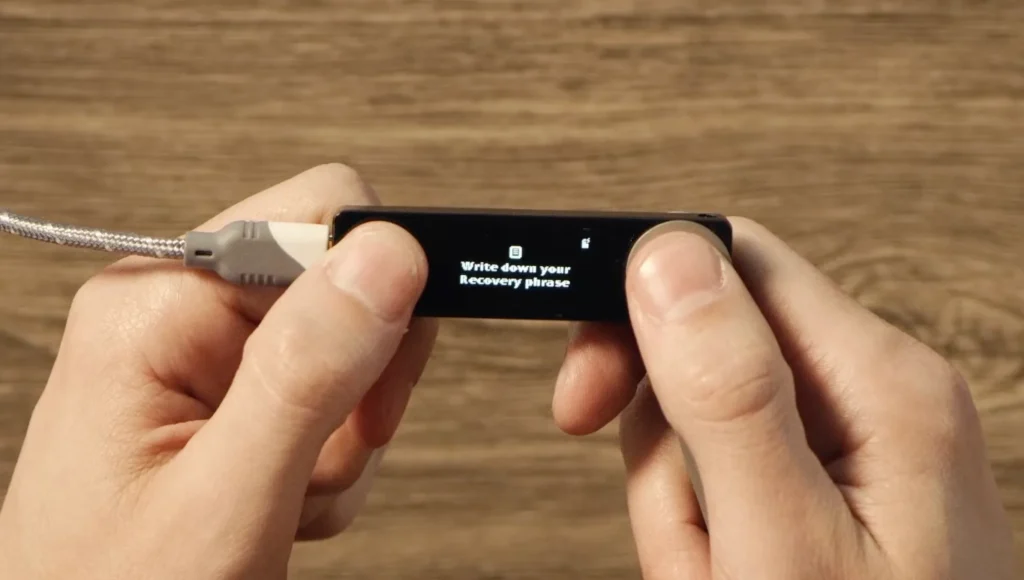
Understanding the Recovery Phrase
Your 24-word recovery phrase is the single most important part of your crypto wallet security. If your device is lost, stolen, or damaged, these 24 words are the only way to restore your wallet and get your funds back. Lose the phrase and the device, and the funds are gone for good.
Writing Down Your Recovery Phrase
- Take the recovery phrase cards out of your Ledger box.
- Write down each word in the exact order shown.
- Use a pen, not a pencil, so it does not fade or smudge.
- Double-check the spelling of every word.
- Number each word from 1 to 24.
- Store the cards somewhere safe.
Confirming Your Recovery Phrase
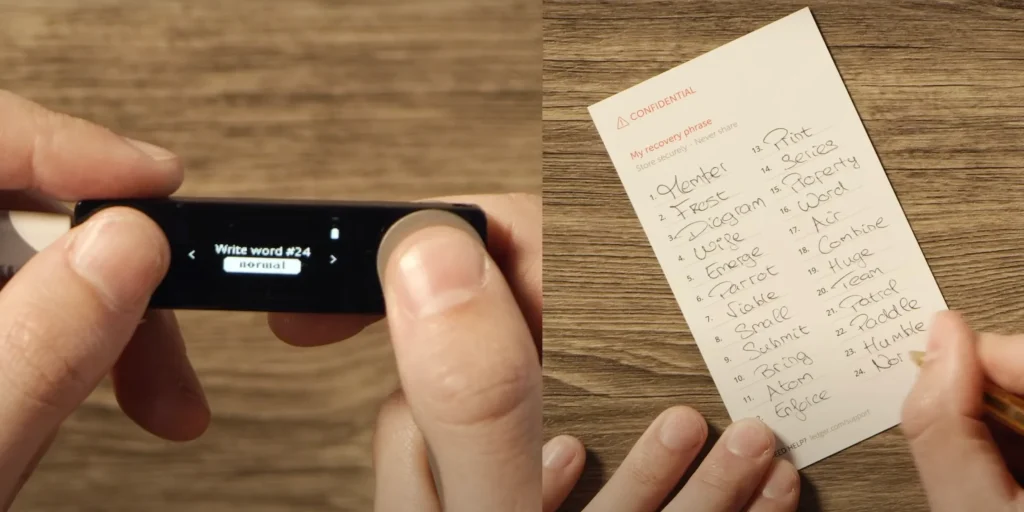
- The device will ask you to confirm words at random positions.
- Select the correct word for each position it asks for.
- Use the buttons to scroll through the word list.
- Press both buttons to confirm each selection.
Never type your recovery phrase into a computer or phone, photograph it, or share it with anyone. Anyone holding those 24 words holds your crypto. And never set up a device with a phrase from an unknown source, such as one pre-printed in the box: it could be a wallet someone else already controls.
Step 5: Pairing with Ledger Live
Establishing the Connection
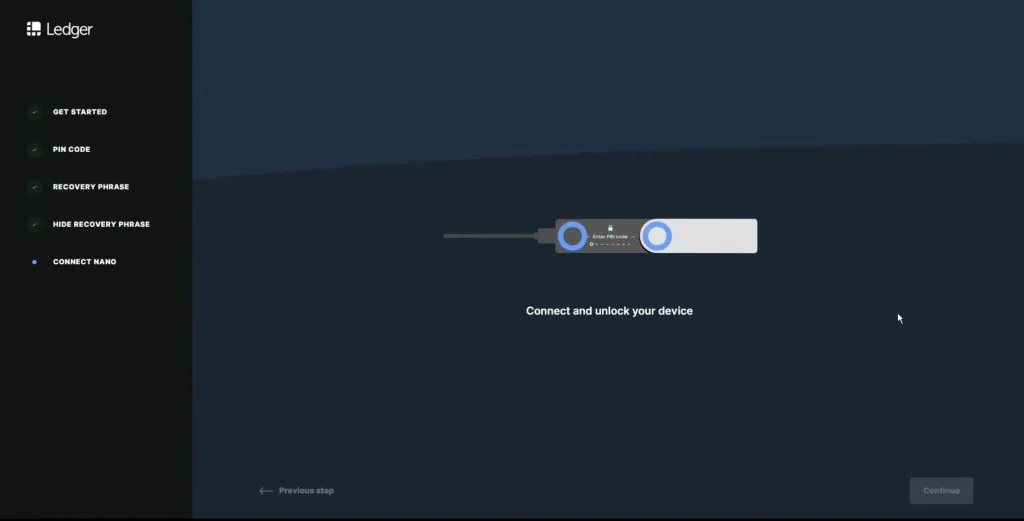
- In Ledger Live, tap “Continue” after PIN setup.
- Select “Pair via Bluetooth” or “Pair via USB.”
- Choose your Ledger Nano X from the device list.
- Check that the pairing code matches on both devices.
- Press both buttons on your Ledger when prompted.
Completing the Setup
- Allow device permissions when asked.
- Wait for synchronization to finish. It can take a few moments.
- Tap “Continue” in Ledger Live.
- Your device is now paired and ready to use.
Pairing does not expose your keys. The Ledger Nano X holds them in a secure element chip that isolates sensitive data and is designed to resist tampering and key extraction. Ledger Live only sees what the device chooses to show it.
Step 6: Installing Cryptocurrency Apps
Accessing the Manager
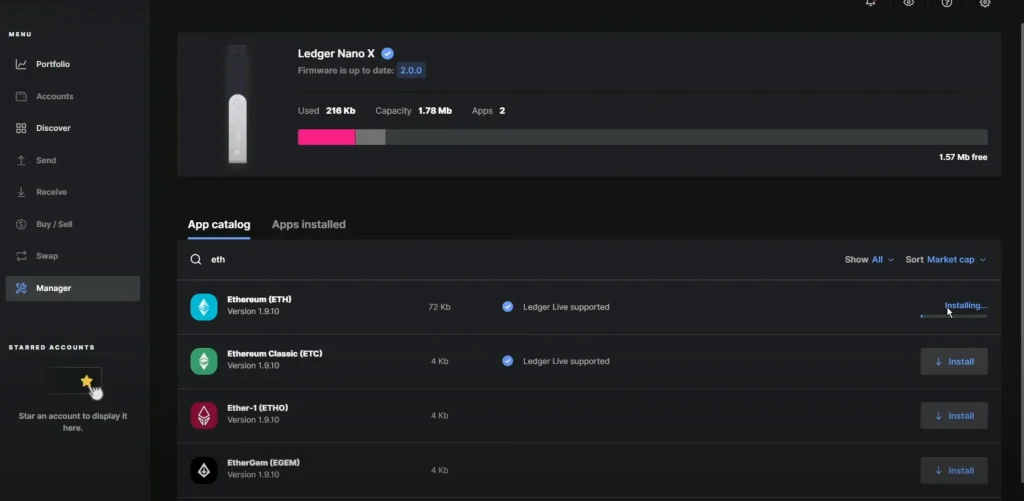
- Open Ledger Live and tap “Manager” (newer versions of Ledger Live call this section “My Ledger”).
- Connect your Ledger Nano X via Bluetooth or USB.
- Enter your PIN on the device.
- Press both buttons to allow Ledger Manager access.
Installing Apps
- Browse the app catalog for the coins you want to hold.
- Tap “Install” next to each app.
- Wait for the installation to finish.
- Check that the apps now appear on your device screen.
Each coin needs its own app, and the Nano X has limited storage. If you run out of room, uninstall apps you are not using. Your coins are not stored in the apps, so removing one does not touch your funds. Your recovery phrase is what keeps them safe. Not sure which chains to prioritize? Our Polkadot vs Cardano breakdown can help you decide which ecosystem fits your strategy.
Step 7: Adding Cryptocurrency Accounts
Creating Your First Account
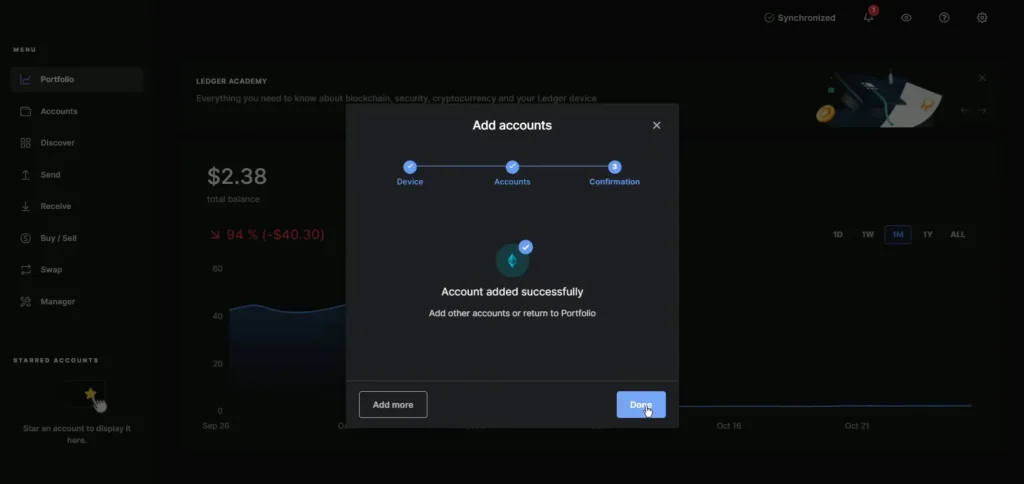
- In Ledger Live, tap “Accounts.”
- Tap the “+” icon.
- Select “Add account.”
- Choose your cryptocurrency from the list.
- Connect your Ledger Nano X.
- Open the matching app on your device.
- Wait for synchronization.
- Name your account and tap “Add account.”
That is it. You now hold crypto with keys that never touch the internet, with no hot wallet or exchange standing between you and your funds.
Adding Multiple Accounts
Repeat the steps for each coin you want to manage. You can also create several accounts for the same coin, which is handy for keeping savings and spending money separate.
Step 8: Receiving and Sending Cryptocurrency
Receiving Cryptocurrency
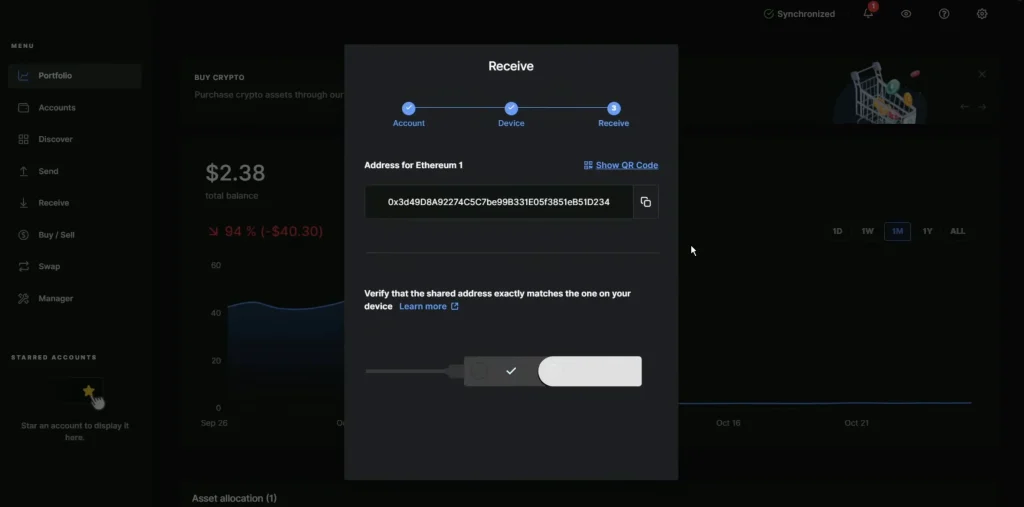
- Select the account you want to receive funds into.
- Tap “Receive.”
- Connect your Ledger Nano X.
- Open the matching app on your device.
- Check that the address on your device screen matches the one in Ledger Live. This step catches malware that swaps addresses on your phone or computer.
- Press both buttons to confirm.
- Copy or share the receiving address.
Sending Cryptocurrency
- Select the account you want to send from.
- Tap “Send.”
- Enter the recipient’s address or scan their QR code.
- Enter the amount.
- Choose a network fee (a higher fee confirms faster).
- Review the transaction details.
- Connect your Ledger Nano X.
- Verify the address and amount on the device screen. Crypto transactions cannot be reversed, so this is your last chance to catch a mistake.
- Press both buttons to confirm and send.
Need more help? Follow our complete guide to send Bitcoin to another wallet using security best practices.
Troubleshooting Common Issues
Even a smooth setup can hit a snag. A device that will not wake up or a Bluetooth pairing that keeps dropping is frustrating, but it is rarely serious, and your funds are not at risk while you sort it out. Here are quick fixes for the problems users run into most.
Power, connection, or app errors: start with the matching list below.
Device Won’t Turn On
- Plug it into power to check the battery.
- Try a different USB cable.
- Hold the power button for 10 seconds to reset.
- Contact Ledger support if the problem persists.
Bluetooth Connection Problems
- Restart both devices.
- Clear the Bluetooth cache on your phone.
- Move closer to your Ledger device.
- Switch to a USB connection instead.
App Installation Failures
- Check the free storage on your device.
- Update Ledger Live to the latest version.
- Restart the Manager and try again.
- Use a USB connection instead of Bluetooth.
Key Takeaways
- Your private keys stay offline: the Ledger Nano X keeps them in a secure chip, out of reach of online threats.
- Your recovery phrase is your only backup: write down and protect your 24 words. They are the only way to recover your wallet.
- Your PIN is your first line of defense: set a strong, unique PIN so no one who picks up the device can open it.
- Bluetooth or USB, your choice: connect to Ledger Live either way.
- Apps control what you can store: install only the coin apps you need. You can uninstall and reinstall them without losing funds.
- Ledger Live is your control center: send, receive, and track your assets in one place.
- Firmware and app updates matter: keep your device and Ledger Live current for the latest security fixes.
- Never share your recovery phrase: not with anyone. Not online. Not even with Ledger support.
- Still deciding on a device? Compare the best Bitcoin hardware wallets to see other secure options.
FAQ
What Happens if I Forget My Ledger PIN?
You will need to reset the device and restore it with your 24-word recovery phrase. Without that phrase, the wallet cannot be recovered.
Can I Plug My Ledger Into Any Computer?
Yes. Your keys never leave the device, but avoid public or untrusted computers anyway to limit your exposure to malware.
Can I Update My Ledger Without a Computer?
Yes. You can update the firmware from the Ledger Live mobile app over Bluetooth.
Is Ledger a Cold Wallet?
Yes. Ledger devices are hardware wallets that keep your private keys offline, which makes them cold wallets by design.
What Happens if I Lose My Ledger?
As long as you have your 24-word recovery phrase, you lose nothing. Restore the phrase on a new Ledger device and your funds reappear.
Can I Use Ledger Without Ledger Live?
Yes. You can connect the device to third-party wallets such as MetaMask. Ledger Live is the official interface, though, and the one Ledger supports directly.
Is Ledger Live Free?
Yes. Ledger Live is free to download and use. Ledger does not charge for the software, but you still pay normal network fees on transactions.
For a fuller look at the app, see the Ledger Live review.
Final Thoughts
Setting up a Ledger Nano X takes less than 30 minutes and protects your crypto for years. Keep your recovery phrase offline and private. Use Ledger Live to manage your assets, check balances, and send or receive crypto safely.
The Nano X has a newer sibling now, and our Ledger Nano Gen5 vs Nano X comparison shows what actually changed.
With proper care, the Ledger Nano X is one of the safest ways to hold digital assets for the long term. Still unsure how Ledger stacks up against other leading hardware wallets? Read our in-depth Ledger vs. Trezor comparison to find the right fit, or go head-to-head with Trezor T vs Ledger Nano X.
Still choosing a device? Our Ledger Flex vs Ledger Stax comparison covers the two touchscreen models.
How I review: Reviewed by Andrei B. I buy the hardware wallets I review, test every product myself and score it on security, UI/UX, ease of use, price and supported coins. Before I publish, I also check recent user reviews and any hack reports.
The whole process is explained on the How We Review page. You can read more about me, or contact me with corrections, from the links at the bottom of this page. For general safety advice, see the FTC guide to cryptocurrency scams.