
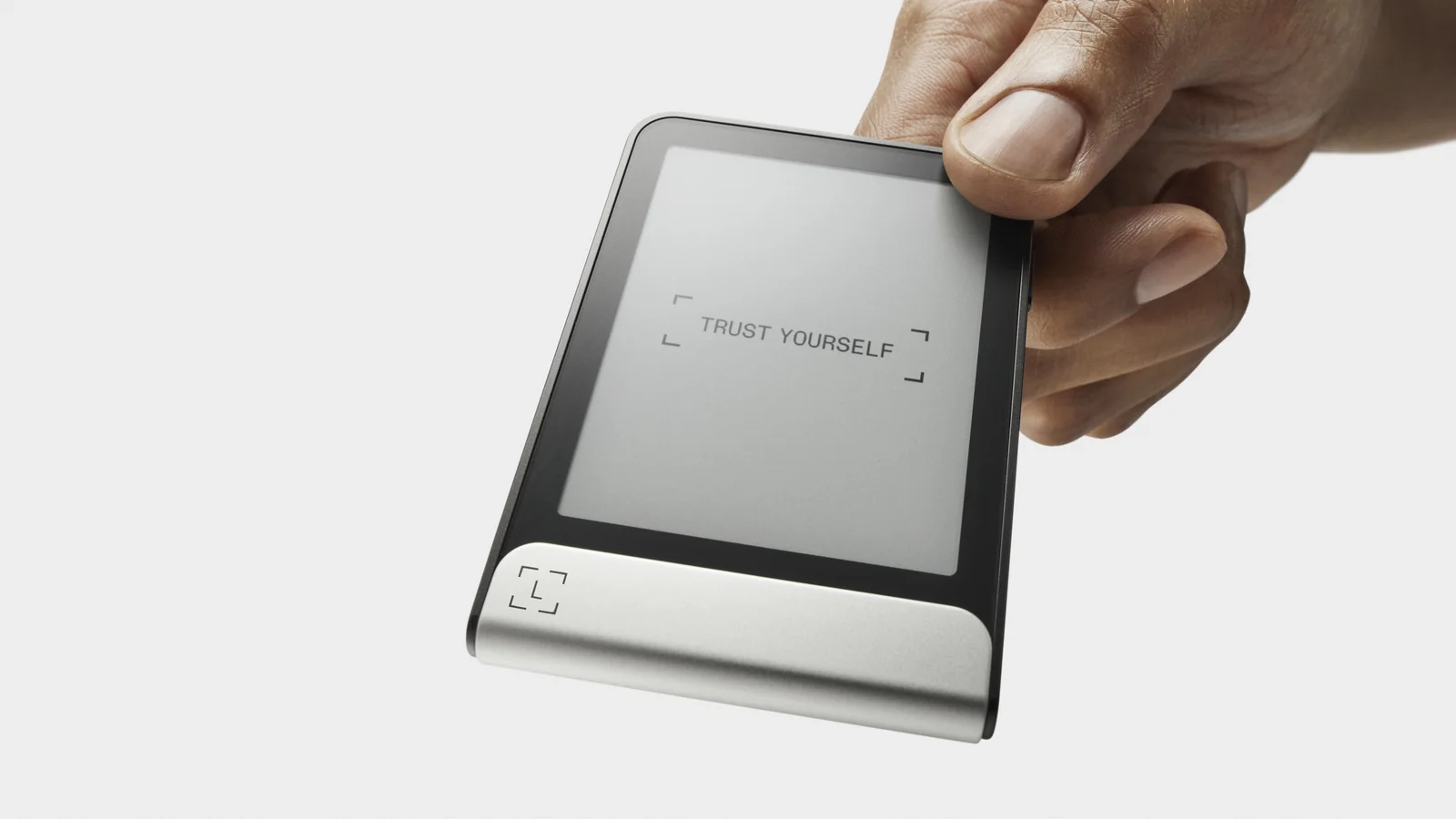
A Ledger Flex will set you back $249 at the time of writing (September 2026), and nearly every decision you make during setup gets made on the device rather than on your screen. There’s a reason for that. The 2.8-inch E Ink touchscreen runs off the Secure Element chip, which means a laptop full of malware can’t quietly change what it’s showing you.
Work through this and you’ll finish with a named Flex, a PIN, 24 words on paper, a genuine check that passed, and the coin apps you actually use. Three things get you there: the box, a phone or a computer, and a room where nobody’s reading over your shoulder. Ledger publishes no setup time for the Flex, so we’d clear half an hour and refuse to hurry the backup.
Every label quoted below is lifted from Ledger’s own support article, which was last updated on 27 July 2026.
The Ledger Flex is Ledger’s mid-range hardware wallet, built around an E Ink touchscreen and a secure element chip.
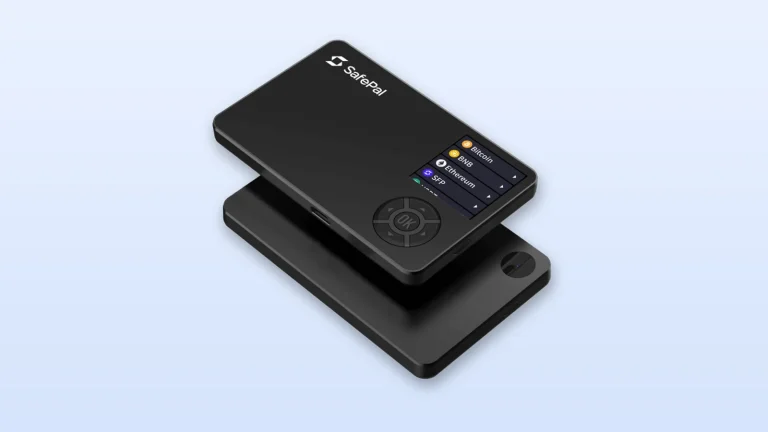
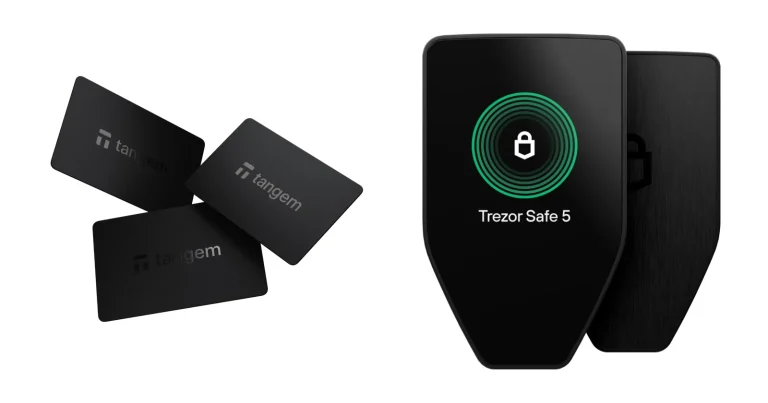
If you’re still choosing a device, Trezor Safe 5 vs Ledger Flex compares it with its closest Trezor rival.
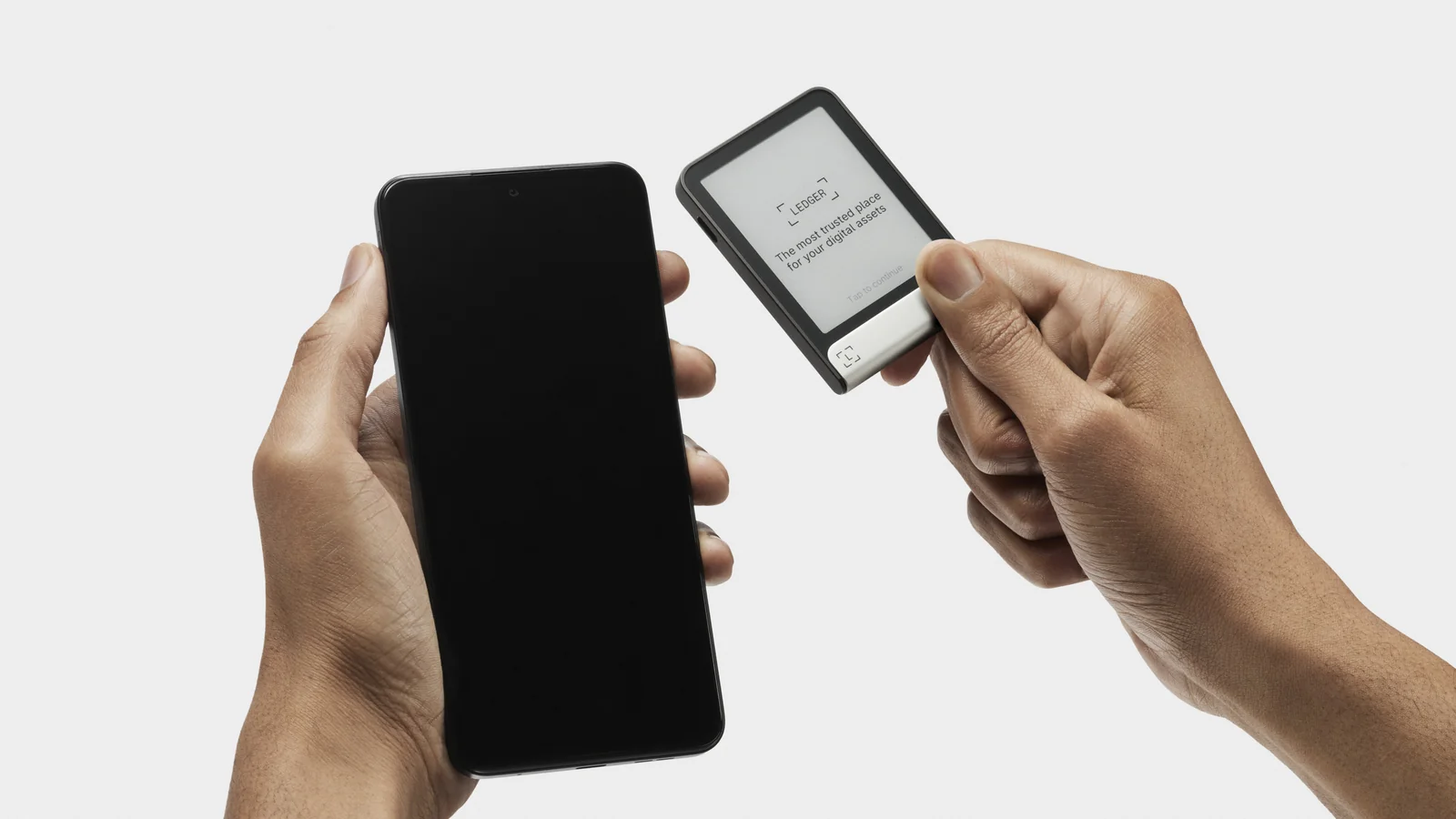
Table of contents
What to Have Ready Before You Open the Box
Line it all up first. Hunting for a pen while two dozen words sit waiting on a screen is how bad backups happen.
- A Flex that came through a channel Ledger recognizes. Its own list is Ledger.com, the official Amazon stores and its authorized distributors and resellers, and it says devices bought elsewhere “are not necessarily dubious” while still asking you to run the safety checks.
- Either a computer or a phone will do. USB is the only way into the desktop app, whereas the phone version talks to the Flex over Bluetooth 5.2.
- The USB-C to USB-C cable that the Ledger store lists among the box contents.
- An unused Recovery Sheet, plus something to write with. That sheet is where the Secret Recovery Phrase goes, meaning the 24 words that stand behind your private keys. Words already printed on it are Ledger’s signal that the device isn’t safe to use.
- A PIN settled in advance, somewhere between 4 and 8 digits. Ledger’s own wording is that “An 8-digit PIN offers an optimal level of security.”
- Somewhere private, with the door closed and no lens pointed at your desk.
Read this bit twice before any coins move. Fire a transaction at the wrong address, or push it over the wrong network, and that money is simply gone, since no blockchain transaction can be undone by Ledger, by the exchange you sent it from, or by you.
Never dealt with addresses before? Spend five minutes on our explainer covering what a wallet address is first.
How to Set Up a Ledger Flex, Step by Step
Eight steps follow, in sequence. We took the wording from Ledger’s official setup article, which handles the Flex, the Stax and the Nano Gen5 in one place.
Step 1. Look at the Box, Then the Recovery Sheet
Packaging comes before power. According to the Ledger store, a Flex box holds the device, a USB-C to USB-C cable, a Recovery Sheet, a Ledger Recovery Key and the Ledger Flex guide.
Ledger’s genuine-check page describes the same product differently: just the signer and three blank Recovery Sheets in an envelope. Two official pages, two answers. Count what’s actually in front of you rather than trusting either list.
What can’t be fudged is the state of the Recovery Sheet. It has to be blank, because Ledger “never provides a 24-word Secret Recovery Phrase in any way, shape, or form”. Find words already written there, or a device demanding a PIN on first use, and Ledger’s instruction is to stop and contact its support team.
Step 2. Wake the Ledger Flex Up
Hold the button on the right side down for a second. A welcome message appears, reading “Welcome to Ledger Flex, your digital signer.” From there you tap your way through the on-screen instructions.
Signer, not hardware wallet, is Ledger’s chosen word these days, and that first screen trips people up because of it. Seeing that same welcome message weeks later means something else entirely: your Flex has reset itself.
Step 3. Get Ledger Wallet and Choose Your Route
Ledger Live became Ledger Wallet, and that app is the companion piece here. Ledger pushes hard for you to set up through it, since doing so hands the app four jobs: verifying the device is genuine, bringing Ledger OS up to date, surfacing security tips, and loading apps once you’re finished.
Going the phone route means tapping “Set up with Ledger Wallet mobile” and scanning the QR code that opens or downloads the app. Switch Bluetooth on for both the handset and the Flex, tap your device once Ledger Wallet mobile lists it, and confirm with “Yes, they match” when the two codes agree.
Prefer a computer? Tap “Set up with Ledger Wallet desktop”, head to ledger.com/start for the download, plug the USB cable in, pick your device inside Ledger Wallet and tap “I’m ready” on the Flex. Bluetooth pairing isn’t supported by the desktop app at all, so USB is the only way it connects.
One requirement catches Android owners out. Location services have to be switched on in the phone’s settings for Ledger Wallet, a Bluetooth rule imposed by Android rather than by Ledger, and Ledger says the app never stores location information.
Step 4. Give the Flex a Name
Tap “Set name”, type something on the keyboard, then tap “Confirm name”. A tap after that carries you onward.
Choose that name with a little care, because other devices can see it over Bluetooth. Owning more than one Ledger is precisely why the company suggests renaming them.
Step 5. Settle on a PIN
Hit “Choose my PIN” and key in anywhere from 4 to 8 digits. The check mark confirms it, the backspace key deletes a digit, and then you enter the whole thing a second time.
Ledger keeps its advice brief: pick the PIN yourself, and eight digits gives you what it calls an optimal level of security. Any device that arrives with a PIN or a Secret Recovery Phrase already loaded goes straight back.
Get it wrong three times running and the Flex wipes itself, taking every private key, app and setting with it. Working as intended, yes. Also a real problem if the PIN slips your mind, because your only route back is a full rebuild from those 24 words.
Step 6. Copy Out the 24 Words
Pull a blank Recovery Sheet out of the box, then tap “Set it up as a new Ledger”. Work through the on-screen instructions, tap “I understand”, and copy down the first group of words.
“Next” moves you to the second group, and you keep going until all twenty-four are on paper. Tap “Done”, take the optional “See the words again” if you want it, then tap “Start confirmation” and tap whichever word the Flex asks for.
On storage, Ledger doesn’t hedge. Offline only, no digital copy, no photograph, nothing in a password manager. The company also states plainly that it will never ask you to enter the phrase in an app or on a website, and its support team won’t ask either.
Migrating from an older wallet changes the path. You’d tap “Recover using Secret Recovery Phrase”, pick 24, 18 or 12 words, and type the opening letters of each one to select it from the suggestions. Phrases built on BIP39 and BIP44 both work, and “Secret Recovery Phrase confirmed” is what the device shows when it’s happy.
Step 7. Make the Flex Prove It’s Real
Inside every Ledger sits an ST33K1M5 Secure Element, a chip carrying CC EAL6+ certification, and a secret key written into it at the factory. Only genuine hardware can use that key to produce the cryptographic proof Ledger’s secure server demands.
On a computer the security checklist walks you through it: click “Check my Nano”, allow the connection when the device asks, and carry on once “All Good! Your Ledger device is genuine and ready to use with Ledger Wallet.” appears.
Nothing stops you repeating the check later. Open “My Ledger” in Ledger Wallet, tap the device, and read the line under its name and version, which should say “Your device is genuine”.
Somewhere in onboarding you’ll also be offered Ledger Recover, an optional recovery service built around identity documents. Closing the window with the “X” skips it, and setup continues as though it never came up.
Step 8. Load the Apps, Then Test With Small Money
Every coin you hold wants its own app sitting on the device. Click “My Ledger”, unlock the Flex with your PIN, tap “Allow” against the prompt “Allow a secure connection with Ledger?”, find what you need in the “App catalog” and click “Install”. Desktop shows “Installing …” while the device works, and mobile shows “Processing…”.
Newcomers get Bitcoin and Ethereum suggested by default. Room is tight, though: Ledger rates the Flex at 1.5 MB of memory space, which usually stretches to somewhere between 10 and 17 apps depending on how big they are. Since apps hold nothing sensitive, deleting and reinstalling them costs you nothing at all.
Funding it deserves patience. Ledger’s guidance is to move a small amount across first, and to hold the receiving address in your software up against the one on the device screen, because addresses shown in software wallets can be manipulated.
Used a Nano before? Same broad shape, completely different screens, and our walkthrough on how to set up a Ledger Nano X handles the two-button version.
Ledger Flex Settings We’d Change First
Nothing here is broken out of the box. Once the wallet exists, though, a handful of options repay a visit. You’ll find them behind the Settings icon on the dashboard, moving between them with the left and right arrows.
| Setting | Where you’ll find it | Why we’d open it |
|---|---|---|
| “Auto lock” | Settings, then Lock screen | Two minutes is the default. Ledger’s tip is simply to lock the thing whenever you’re not using it. |
| “Auto power off” | Settings, then Battery | Five minutes of sitting idle powers it down. You can pick 1, 2, 5 or 10 minutes instead. |
| “Name” | Settings, then Name | Bluetooth broadcasts this, so give it something you’re comfortable announcing. |
| NFC | Settings, then NFC | Off unless you turn it on, and off again the moment the Flex powers down. |
| Bluetooth | Settings, then Bluetooth | Switches the radio on and clears a pairing that has gone bad. |
| “Change PIN” | Settings, then Change PIN | Replaces a PIN you have gone off, leaving the wallet untouched. |
| “About this Ledger” | Settings, then About this Ledger | Your OS version, hardware version, serial number and the legal small print live here. |
| “Sounds” | Settings, then Sounds | Notification sounds handle battery and transaction alerts. Tap sounds handle the keyboard. |
| Lock screen picture | Ledger Wallet, then My Ledger | Tap “Add” or “Replace”, then “Set as lock screen”, then “Load picture” and “Keep” on the Flex. |
| “Advanced” | Settings, then Advanced | Passphrase options hide in here, along with the switch that un-shuffles the PIN pad. |
Two of those quietly fight each other. Set an auto lock longer than the auto power off and the Flex simply shuts down first, so your lock setting never gets its turn.
That lock screen picture earns its place too. It stays on display even with the Flex switched off, which turns a swapped device into something you’d spot immediately.
How Long Does a Ledger Flex Setup Take?
No official figure exists for the Flex, so we’d be wary of anyone quoting one with confidence. Where the minutes actually disappear is easier to pin down.
Your connection sets the pace at the start, because Ledger Wallet has to download before anything else happens. Naming the Flex and choosing a PIN barely register next to that.
Then comes the backup, which drags on purpose. Words arrive in groups, “Next” carries you between them, and afterwards the Flex quizzes you by asking for particular words back. Rushing here is common, and it’s the one part of setup where a mistake really bites.
Everything after that belongs to the blockchain, not the device. Ledger suggests waiting for several confirmations before you treat a payment as settled, and it puts the Bitcoin number at six.
When the Ledger Flex Won’t Cooperate
- Your computer acts like nothing is plugged in. Ledger’s first suggestion is the boxed cable, since plenty of charging cables skip the data pins and will happily power the Flex without letting it speak.
- You’re sure the cable is in, yet nothing happens. Ledger points out that the USB-C port on a new device can be stiff, so lean on it a bit harder.
- Nothing shows up in Windows. Open Device Manager, look under “USB (Universal Serial Bus)” for Ledger Flex, and if it isn’t there, blame the cable, the adapter or the port.
- It appears in the list but refuses to connect. Turn off a VPN, a firewall, a proxy or your anti-virus, or simply move to a different USB port.
- Windows is still being difficult. Right-click Ledger Wallet, pick “Run as administrator”, and keep in mind that Windows “S mode” blocks the app from talking to the device entirely.
- Mac owners should press Command + Spacebar, open “System Information” and hunt for Ledger Flex under “USB (Universal Serial Bus)”. Full Disk Access under System Settings, Privacy & Security may also be needed by Ledger Wallet.
- Some other wallet is interfering. Everything else, applications and browser extensions alike, has to be closed first, and Ledger singles out MetaMask, Daedalus and MyEtherWallet.
- Bluetooth refuses to pair. Toggle it off and on again in the device settings, clear the pairing, and stay on the dashboard with no blockchain app open while you retry.
- Your phone can’t see the Flex in its list. Default names shrink to their suffix after an OS update, so what used to read “Ledger Flex 01AB” now reads “01AB”.
- Pairing fails repeatedly even after a reset. Strip the Ledger out of the phone’s own Bluetooth settings as well, using whichever wording your handset prefers, “Unpair” or “Forget”.
- Your PIN has vanished from memory. There’s no recovery for it, so three failed attempts reset the device and you rebuild the wallet from those 24 words.
Habits Worth Keeping After Setup
- Move a token amount first and let it land before anything larger follows. Ledger says the same thing, so this isn’t only us being cautious.
- Believe the Flex screen over everything else. Ledger’s own phrasing calls the device display the only source of truth, and it holds up, because software can be fooled where the device can’t.
- Compare the receiving address on the device with whatever your software shows. Malware that swaps addresses tends to preserve the opening and closing characters, which is why glancing at it isn’t enough.
- Kill any transaction the moment Ledger Wallet flags “Mismatch between the copied address and the one in the clipboard”, then run a scan across your computer.
- Those 24 words never touch a keyboard. No camera roll, no password manager, no note in the cloud.
- Stay current on Ledger OS, which Ledger pushes strongly. Version 1.6.1 turned up on 11 May 2026 to sort out Bluetooth being switched off by an earlier update.
- Hang on to the paper sheet even if you’re using a Ledger Recovery Key, because that card erases itself permanently after three wrong PIN attempts.
Wondering where the Flex lands against everything else on the market? Our roundup of the best crypto hardware wallets covers the field, and Ledger vs Trezor narrows it to the two names most people weigh up.
Ledger Flex Setup FAQ
Can a Ledger Flex be set up without a computer?
Yes. Tap “Set up with Ledger Wallet mobile”, scan the QR code, and let the phone pair over Bluetooth. Android owners have one extra hoop, since location services must be enabled for Ledger Wallet, and that requirement comes from Android rather than from Ledger.
What if I forget my Ledger Flex PIN?
Three wrong attempts in a row and the Flex resets itself, stripping out every private key, app and setting. No other route exists, because nothing on the device or in the app can recover a forgotten PIN. Your 24-word Secret Recovery Phrase then rebuilds the wallet from scratch.
How long should a Ledger Flex PIN be?
Between 4 and 8 digits, and Ledger reckons eight gives you an optimal level of security. It also insists the PIN be yours, and warns you off any device that turns up with one already set.
With a Ledger Recovery Key, do the 24 words still need writing down?
They do. Ledger’s position is that the Recovery Key sits alongside your Recovery Sheet rather than replacing it, and that writing down the Secret Recovery Phrase is not optional. Three incorrect PIN attempts wipe the card for good, which is exactly why paper still matters.
How many apps will a Ledger Flex hold?
Ledger quotes 1.5 MB of memory space on the Flex, generally good for 10 to 17 apps depending on their size. None of them store anything sensitive, so removing and reinstalling apps leaves your keys completely alone.
Is it possible to set up a Ledger Flex without Ledger Wallet?
Possible, though Ledger argues against it. Running setup through the app is what allows it to confirm the device is genuine, bring Ledger OS to the latest version, show you security tips and install apps once you are done.
Will the Ledger Flex connect to the desktop app over Bluetooth?
No. Ledger is clear that Bluetooth pairing isn’t supported by the Ledger Wallet desktop app, and that USB is the only connection it accepts. Bluetooth stays a phone-only option.
The Short Version
Six things, done without cutting corners, make up a Ledger Flex setup. Confirm the Recovery Sheet is blank, power the device on, run the whole thing through Ledger Wallet, name it, pick a PIN that will stay in your head, and get all 24 words onto paper. Once that’s behind you, pass the genuine check, install whichever apps you need, and send a small test amount before the rest follows.
Torn between models? Our Ledger Stax review looks at the bigger sibling, while our Ledger Nano X review covers the budget end of the range.
Take all of this as general information, not as financial, legal, or investment advice. Features and prices shift around, so check the vendor’s own page before you buy.
How I review: Reviewed by Andrei B. I buy the hardware wallets I review, test every product myself and score it on security, UI/UX, ease of use, price and supported coins. Before I publish, I also check recent user reviews and any hack reports.
The whole process is explained on the How We Review page. You can read more about me, or contact me with corrections, from the links at the bottom of this page. For general safety advice, see the FTC guide to cryptocurrency scams.