
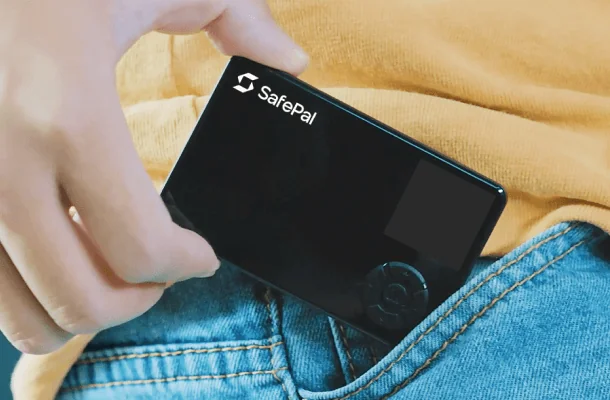
Work through this guide and you’ll finish with a SafePal S1 that has passed its authenticity check, holds a fresh wallet behind a PIN, and talks to the SafePal App on your phone. At the time of writing (September 2026), SafePal sells the S1 for $49.99. Set aside one uninterrupted session and you’ll get it done.
Here’s the kit: the S1 itself, a charged battery, a phone running the SafePal App, and a pen for the phrase cards that come in the box. There’s no Bluetooth on this thing, and no WiFi, NFC or USB data link either, which means the device and your phone only ever talk by scanning each other’s QR codes.
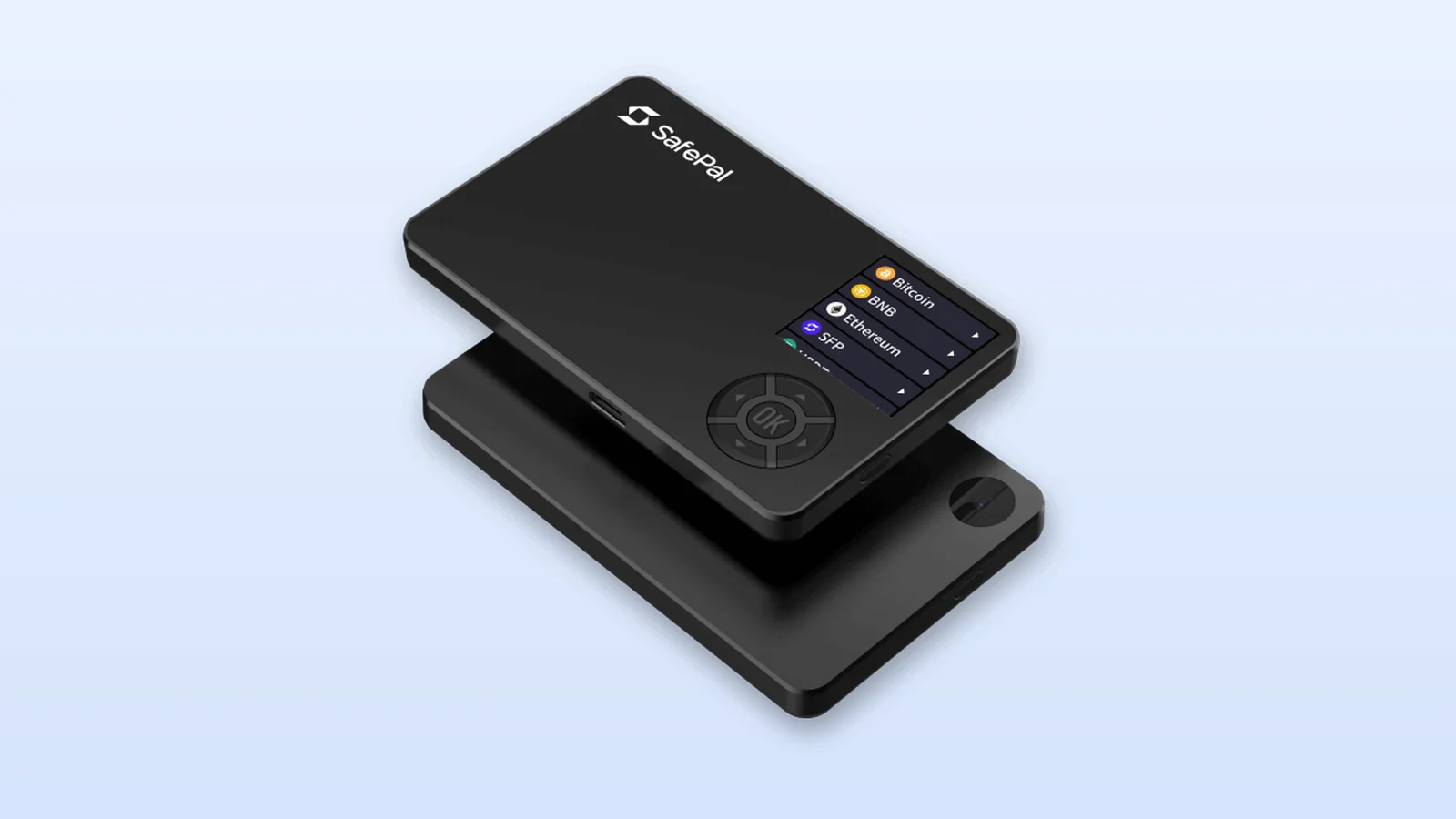
Table of contents
What to Have Ready Before You Set Up the SafePal S1
- Everything that shipped in the box. That’s the device, a USB cable, 3 Mnemonic Phrase Cards, a cleaning cloth, 2 stickers, the user manual and a Download App Card.
- Some charge in the battery. With a 5V 1A charger it goes from empty to full in 2-3 hours, and SafePal wants you on a phone charger or a computer’s USB port, because a laptop charging plug can damage the S1.
- An iPhone or an Android phone running the official SafePal App, which is at V4.11.10 on both.
- Two codes you’ve thought about in advance. The device wants a PIN of 6-12 digits, and the app wants a six-digit Security Password, and they aren’t interchangeable.
- A pen, those phrase cards, and somewhere nobody can look over your shoulder. Your seed phrase is a list of 12, 18 or 24 words that can rebuild the wallet, and the S1 shows it to you exactly once.
Please read this part twice. If you send crypto to the wrong address, or over a network that doesn’t match, it’s lost for good and nobody can undo the transfer. SafePal’s own example is USDT (TRC20) sent to a USDT (ERC20) address, which it calls permanent asset loss.
New to addresses? Our short explainer on what a wallet address is is worth five minutes before you begin.
How to Set Up the SafePal S1, One Step at a Time
I’ve kept to the order in SafePal’s official S1 setup guide, which the company last revised in September 2026. Getting around the menus means using the D-pad (Left, Up, Right, Down), and the OK button confirms whatever’s highlighted.
Step 1. Look Over the Box, Then Charge the S1
Before anything else, make sure the package hasn’t been opened or knocked about, and that the anti-counterfeit stickers on the gift box haven’t been disturbed. Count the contents against the list above, too.
Then get it on a 5V charger. If you see a yellow battery icon, the battery’s flat, and I’d wait for some charge rather than start setup on a dying device.
Step 2. Check That Your SafePal S1 Is Genuine
Switch the S1 on and choose your language. You’ll land on “Device Authentication”, and clicking ‘Next’ brings up a QR code.
Point your phone’s browser at that code and SafePal’s verification page opens. Press OK on the device to get a 6-digit code, enter those digits on the page, then hit ‘Authenticate’.
What you want to see is a result saying the S1 is genuine and has never been used. Anything different, stop there and get in touch with SafePal.
Watch for one thing in particular. If a supposedly new S1 never shows you this authentication screen at all, SafePal says someone may have used it before you.
Step 3. Activate the SafePal S1
Click ‘Next’ on the device and let its camera read the QR code on the result page in your browser. Give it time. SafePal says activation might take a few minutes, and I wouldn’t press anything until it’s done.
Worth knowing: the one-year warranty counts from this activation date, not from when you bought it.
Step 4. Make a Fresh Wallet or Restore an Old One
Two choices appear: ‘Create New Wallet’ and ‘Recover My Wallet’. Starting from scratch, go with ‘Create New Wallet’, read the note that a new mnemonic phrase is about to be generated, and pick “Create Now”.
The “Choose No. of Mnemonic” screen lets you pick 24, 12 or 18 words. I’d go with 24, the longest option the S1 has. After that it tells you to “Write down all words in order”.
Bringing an existing wallet over is different. Pick ‘Recover My Wallet’, choose how many words your phrase has, select “Recover”, and type the words in on the little on-screen keyboard; after the final word the S1 spends 10-15 seconds on a “Configuring” screen.
Step 5. Copy Down the Seed Phrase and Prove You Got It Right
Write each word on a Mnemonic Phrase Card in the order shown, then go back over your spelling a second time. Once the wallet exists, SafePal says there’s no other way to back that phrase up again.
You’ll then see “Only 2 steps away!” along with a request to verify. Choose ‘Next’ and select the words from the list, one position at a time.
No photos of the words, please.
Hurrying is how people get burned at this stage, because a word you’ve misspelled can’t be checked later and the S1 won’t ever display the phrase a second time. I’d rather spend an extra five minutes here than anywhere else in the setup.
Step 6. Pick a PIN and Give the Wallet a Name
At “Enter PIN”, type something between 6 and 12 digits long. It’s the code you’ll punch in whenever you sign, so make it one you’ll actually remember. Skip lazy choices like “123456” or “666666”.
Next comes “Wallet is created! Please name your wallet.” Tap “Name My Wallet”, type something, and a “Download SafePal App” QR code takes its place.
Don’t lose that PIN. Get it wrong too many times and the S1 erases the private key, leaving the seed phrase as your only route back in.
Step 7. Get the SafePal App and Choose a Security Password
You can scan the code on the S1’s screen or the one on the Download App Card, or just search for SafePal in the App Store or on Google Play. The app’s first job is having you choose a six-digit Security Password.
Fingerprint and Pattern unlock can be skipped if you like. Keep the two codes straight in your head: the Security Password gets you into the app, while the PIN on the device is what signs a transaction.
Step 8. Pair the SafePal S1 With Your Phone
When the app asks what to add, pick ‘Hardware Wallet’. A Software Wallet is the wrong choice here. Read through the prompts, tap ‘Next’, and a QR code comes up on the phone.
Now click ‘Scan’ on the device, aim its camera at your phone, and type your PIN. It answers with a run of dynamic QR codes, so tap ‘Next’ in the app and let the phone’s camera read them.
Tapping Software Wallet by mistake is surprisingly common, and it annoys me that the two options sit side by side. SafePal’s rule of thumb is simple: if you ever manage to send crypto without the S1 being involved, you almost certainly made a software wallet rather than pairing the hardware.
Step 9. Add Your Coins and Try a Small Deposit
Out of the box, the S1 can already sign for BTC, ETH, BNB (BEP2) and BNB (BEP20). Anything beyond that means tapping the edit button in the app, ticking the coins you want, choosing ‘Add Coin’, then scanning codes back and forth between phone and device.
Tokens work through their chain’s main coin. Add ETH and you’re covered for ERC20 tokens; add TRX for USDT (TRC20).
For receiving, open the coin in the app and tap ‘Receive’, followed by ‘Share’. Start with a tiny amount, and if you’d like the sending side explained, our walkthrough on how to send Bitcoin to another wallet covers it.
SafePal S1 Settings I’d Look At After Setup
You’ll find each of these inside the S1’s Settings menu. I matched the names to SafePal’s help centre in September 2026.
| Setting (checked Sept 2026) | How to get there | What it’s good for |
|---|---|---|
| Upgrade | Settings, then Upgrade | Loads new firmware. The S1 is on V1.0.81, dated 08/10/2026. |
| Seed Verification | Settings, then Seed Verification | Tests your paper backup and never reveals the words. |
| Passphrase | Settings, Passphrase, then Set Passphrase | Opens a separate hidden wallet. Up to 60 characters, and capitals count. |
| About | Settings, then About | Tells you the device SN, which you’ll need for firmware downloads. |
| Reset Wallet | Settings, then Reset Wallet | Clears the device before you sell it or stop using it. |
Upgrading takes a computer. Grab the file from SafePal’s upgrade page with your SN, plug the S1 in by USB, and follow Settings, Upgrade, Backup already, Enter Upgrade Mode.
A virtual disk shows up on your computer. Drop ‘upgrade.bin’ onto it, then confirm with ‘Upgrade’ on the device.
How Much Time Does SafePal S1 Setup Take?
There’s no single number from SafePal. The pieces it does give: 2-3 hours to charge on a 5V 1A charger, a few minutes for activation, and 10-15 seconds of configuring when you restore a wallet.
Firmware updates run 1-3 minutes. In practice, I’d expect copying out 24 words with care to eat more of your time than anything else.
How quickly your first deposit shows up is down to the blockchain and whoever’s sending, and the S1 has no say in it. The same goes for network fees, which vary by chain and move with demand.
When SafePal S1 Setup Goes Wrong
- A device that won’t take a charge should sit on the charger for a good while, as long as 24 hours, before you swap in a different USB cable.
- No authentication screen on a brand-new unit is a red flag. It may be second-hand, so talk to SafePal before making a wallet on it.
- Seeing “wrong mnemonic phrase” while restoring means one of your words isn’t in the BIP39 list. Look at the spelling on your card.
- The computer can’t detect the S1 during an update? It only appears once you’ve clicked ‘Enter Upgrade Mode’, and after that a different cable or port is the next thing to try.
- An empty balance on the device isn’t a fault. The S1 stays offline by design, and your balances live in the paired app.
- SafePal has no way to retrieve a forgotten PIN. You’d reset the wallet in Settings, restore it from the seed phrase, and choose a new PIN during that process.
- Exchange deposit not arriving? It may have needed a Memo or Tag in the ‘MEMO’ field.
Habits That Keep Your SafePal S1 Safe
- Stick to official sellers, meaning safepal.com, Amazon or a local reseller.
- Your seed phrase belongs offline on paper or metal, and it never gets shared, since whoever holds it can take your crypto.
- Before a big transfer, move a small test amount.
- Read the address and the amount on the S1’s own screen, and only then type your PIN.
- Keep an eye on the 3-character Security Suffix the device shows. According to SafePal, it’s there so you’d notice if someone swapped the wallet on the device.
- Be suspicious of emails that look like they’re from SafePal. In August 2026 the company said order details for approximately 39,798 customers had leaked, although seed phrases and private keys weren’t part of it.
Curious how a device with a USB link handles the same process? Have a look at our Ledger Nano X setup guide.
SafePal S1 Setup Questions
Will I need a computer to set up the SafePal S1?
No. The device and a phone are all it takes. A computer only comes into it when you update the firmware.
Is there a way to view the seed phrase again once setup’s done?
Nope. SafePal says you can’t back the phrase up a second time after the wallet exists, but Seed Verification will tell you whether the copy you wrote down is correct.
What if I get the PIN wrong over and over?
The S1 wipes its private key, and you’d restore the wallet from your seed phrase.
Are the PIN and the Security Password the same thing?
No. They’re separate codes: the 6-12 digit PIN signs transactions on the device, while the six-digit Security Password opens the SafePal App. I’d make them different numbers.
Can one S1 pair with several phones?
Yes, though every send still asks for that phone’s Security Password plus the device PIN.
Is it OK to charge it from a laptop charger?
No. SafePal warns a laptop charging plug can damage the S1, so stick to a 5V phone charger or a computer’s USB port.
The Short Version
Charge it, confirm it’s genuine, activate it, and make a wallet. After that you write down and verify the phrase, choose a PIN, and pair the S1 with the SafePal App using QR codes, then send yourself a small test deposit before anything bigger.
For the good and the bad of the device itself, see our SafePal S1 review.
This article is for general information only and is not financial, legal, or investment advice. Prices and features change; check the vendor’s official page before buying.