
This guide gets the coins out of your hot wallet and under the control of keys that stay on a hardware wallet. By “hot wallet” I mean any wallet app that lives online on your phone, browser or laptop, like MetaMask or Phantom. The move itself is a normal transfer on the blockchain, from one of your addresses to another one you also own.
With a brand-new device, the setup will take you longer than the sending. You’ll need the hardware wallet and its app (Ledger Wallet or Trezor Suite), the hot wallet you’re emptying, and a bit of each network’s own coin so you can cover fees.
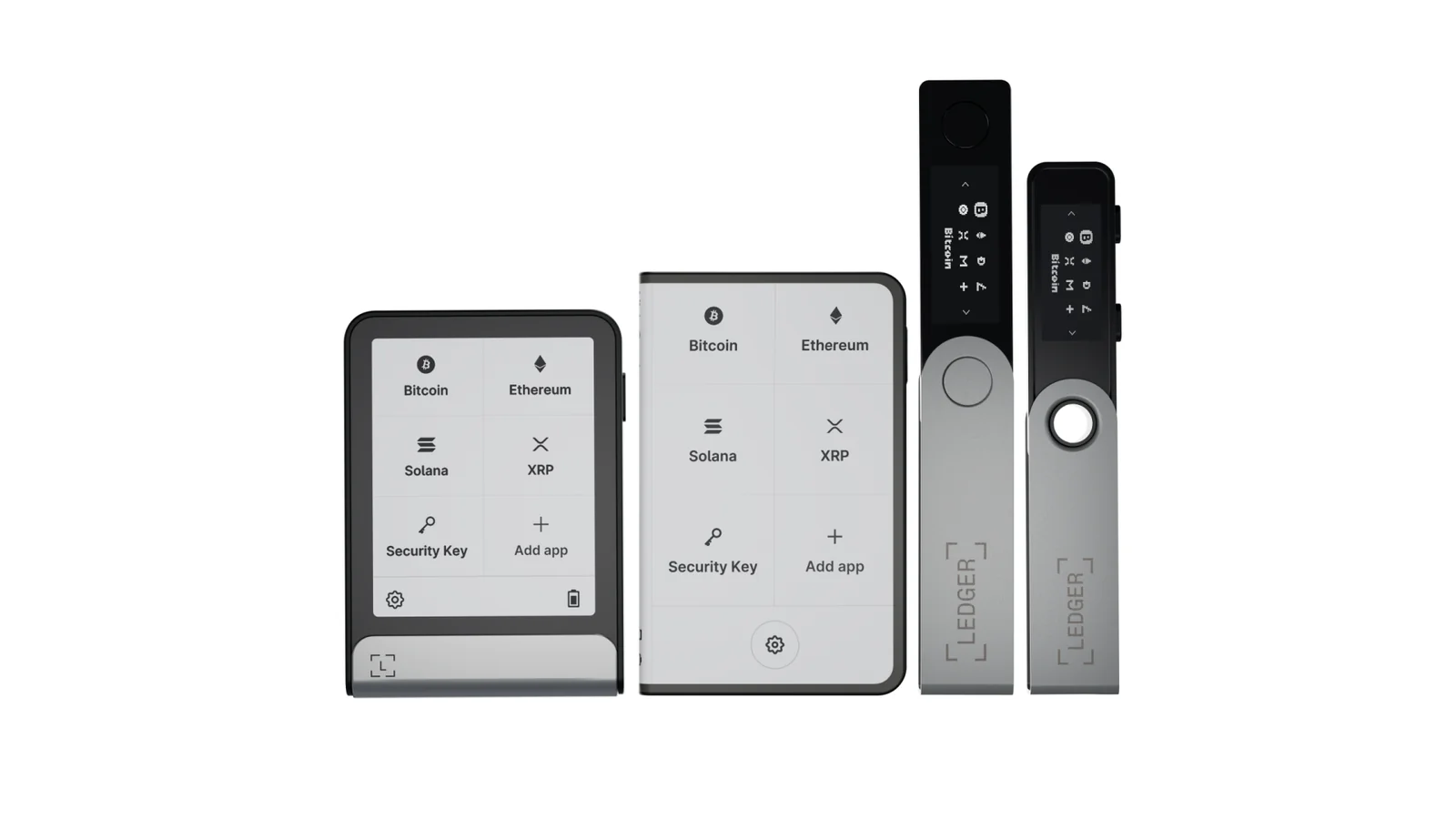
Table of contents
What you need before moving crypto to a hardware wallet
- A hardware wallet you got straight from the maker. At the time of writing (October 2026), the Ledger Nano S Plus is $69 and the Trezor Safe 3 is $59.
- Its app on your phone or computer. That’s Ledger Wallet (the app Ledger used to call Ledger Live) or Trezor Suite.
- Your way into the hot wallet, for example the MetaMask browser extension plus its password.
- A written note of what you hold and which network each coin or token is on.
- A little of each network’s native coin for fees. Think ETH if you’re on Ethereum, SOL if you’re on Solana.
- Paper and a pen (or the cards that come in the box) for the fresh recovery phrase.
One warning before anything else. If you pick the wrong network or paste the wrong address, your funds are lost, and no one can undo the transaction.
Trezor’s own wording is blunt: get the network right, because there’s no undo.
Still fuzzy on what an address actually is? Our explainer on what a wallet address is explains it in plain terms.
How to move crypto from a hot wallet to a hardware wallet, step by step
I took the button names from three official sources: Ledger’s MetaMask-to-Ledger guide, Trezor’s guide to receiving in Trezor Suite, and MetaMask’s help page on sending tokens. MetaMask plays the hot wallet here. Where Phantom works differently, I say so.
Step 1. Set up the hardware wallet with its own new recovery phrase
Choose the option to create a new wallet, then copy down the recovery phrase the device shows you. That phrase (you’ll also hear “seed phrase”) is the word list that can rebuild the whole wallet if the device dies. If you’ve got a Ledger, our Nano X setup walkthrough goes through it screen by screen.
Here’s where people go wrong. They enter their old MetaMask phrase into the new device to save time, and Ledger calls that “not safe”, adding that it “defeats the purpose of using a Ledger device”. The reasoning is simple: that phrase could have leaked the day MetaMask made it, and Trezor says the same thing about starting fresh.
Step 2. Add an account for every coin you’re moving
With a Ledger, you put the matching app on the device first (the Bitcoin (BTC) app for bitcoin, say) and then add an account in Ledger Wallet. The Ethereum (ETH) app handles every EVM-compatible chain on its own. So a single Ethereum account can take deposits on Ethereum, Polygon, Arbitrum and Base.
Trezor Suite is simpler. If the coin isn’t there on the Receive screen, click “Add account”.
Tokens are easy to overlook. An ERC-20 token like USDT (ERC20) lands in your Ethereum account; it doesn’t get an account of its own.
Step 3. Get a receive address and check it on the device
On the desktop version of Ledger Wallet, click “Receive”, choose “Via Crypto address”, pick your account and hit “Continue”. Unlock the Ledger, open the app it asks for, and click “Verify”. Once the address on the device matches what’s on your computer, approve it on the device.
The phone app works a little differently. You tap the Transfer icon, then “Receive via crypto address”, then “Verify my address”.
For a Trezor, open Trezor Suite, click “Receive” at the top right of the Dashboard, choose the account, and click “Verify” so the full address appears on the Trezor itself. I’d steer clear of Ledger Wallet’s “Don’t have your device?” link. It hands you an address that the device never confirmed, which rather defeats the point of the exercise.
Step 4. Start the send in MetaMask on the matching network
Open MetaMask, switch to the account holding the funds, and look at the network name at the top. According to Ledger, it has to be the same network you chose in Ledger Wallet. Then click “Send”, pick the network and the token, and paste in your hardware wallet’s address.
Before going further, hold the pasted address up against the device screen, middle characters included. Malware can quietly replace an address after you paste it, and the only screen you can really trust is the one on the hardware wallet. Ledger Wallet has a “Re-verify” button that puts the address back on the device if you want a second look.
Step 5. Try a small test transfer first
Type in a small amount and click “Continue”. Look over the fee and the address, then click “Confirm”. Ledger and Trezor each tell you to run a test like this before any big transfer, and I wouldn’t skip it.
Don’t move on until the coins turn up in Ledger Wallet or Trezor Suite.
Phantom isn’t much different: click “Send” on the “Home” tab, choose the token, paste the address, enter an amount, click “Next” and confirm. When a test seems to have vanished, the usual reason is that you never added an account for that network on the hardware wallet side.
Step 6. Move everything else, saving the native coin for last
With the test safely through, send what’s left. I’d move tokens before the native coin, since you need that coin to pay the fee on each send. MetaMask does let you pay fees in other tokens on Ethereum, BNB Smart Chain, Arbitrum, Base, Polygon and Linea, but anywhere else it’s the native token or nothing.
Go through steps 4 and 5 again for each network you use.
NFTs on Ethereum take a slightly different path. Ledger’s method is to connect MetaMask on OpenSea, open the NFT, click “Transfer”, paste the Ledger Ethereum address you verified, and approve it in MetaMask.
Step 7. Clean up what’s left in the old hot wallet
Go network by network and make sure nothing’s been left behind. If you still want pocket money in the hot wallet for everyday use, keep it small. Ledger also points to a guide on revoking token allowances with revoke.cash, and if you’ve connected that wallet to decentralized apps, I think that cleanup is worth doing.
You don’t have to give up MetaMask for apps, either. A Ledger or Trezor can plug into it, and our roundup of hardware wallets that pair well with MetaMask compares them.
What the move costs in network fees
Every send out of the hot wallet costs a network fee. Trezor spells this out, noting that moving your crypto means paying blockchain transaction fees. Here’s how those fees get set on the networks most people use.
| Network | You pay the fee in | How it’s worked out (Sept 2026) |
|---|---|---|
| Ethereum | ETH, or another token if MetaMask allows it | A basic ETH transfer uses 21,000 gas. The fee is gas used times the base fee plus the priority fee. |
| Solana | SOL | The base fee is 5,000 lamports (0.000005 SOL) for each signature. Phantom suggests holding about 0.02 SOL. |
| Base | ETH | Phantom’s suggested reserve is about 0.002 ETH. |
| Polygon | POL | Phantom’s suggested reserve is about 0.5 POL. |
Keep enough of the native coin back for the final transfer on each chain. Without it, that last send simply won’t go through.
How long does the transfer take?
Most of your time goes into setting up a new device. The transfer is just a regular transaction on the chain, and Ledger points out that each blockchain takes its own time to process one.
On Ethereum, there’s a new slot every 12 seconds, and that’s the pace at which fresh blocks can pick up your transaction. Bitcoin moves more slowly; Ledger suggests waiting for 6 confirmations before you count a payment as settled. Until the network confirms it, MetaMask will list your send as “pending”.
Problems you might hit, and how to fix them
- Your coins aren’t showing in Ledger Wallet or Trezor Suite. Most likely they’re on a chain you haven’t added, so add an account for that network.
- You picked the wrong EVM network by mistake. As long as your Ledger verified the address, Ledger says the coins aren’t gone, and adding the matching account in Ledger Wallet brings them into view.
- A send won’t leave “pending”. Click the transaction submitted notice in MetaMask, where supported networks give you speed up and cancel.
- The device shows a different address. Press “Reject” on it and don’t send anything, and if Ledger Wallet warns about a clipboard mismatch, stop and run a full malware scan.
- There’s nothing left to pay the fee with. Hold some native coin back, or on networks that allow it, have MetaMask take the fee in another token.
- Ledger Wallet doesn’t list your network. It isn’t supported there yet, so link the Ledger to MetaMask, add the network in MetaMask, and receive through that.
Safety habits for moving to cold storage
- Do a small test and don’t continue until it arrives.
- When the computer and the device disagree, believe the device.
- Be wary of address poisoning, where a scammer sends you a tiny amount from a look-alike address and hopes you’ll copy it later. Your transaction history is the wrong place to copy an address from.
- Keep the hardware wallet’s phrase off every phone and computer. Ledger won’t ever ask you for it.
- Leave your old MetaMask phrase out of the new device.
- Moving bitcoin? Trezor recommends Coin Control, which stops you merging coins in a way that ties your addresses together.
Haven’t bought a device yet? My Ledger vs Trezor breakdown goes through where each one wins.
Questions about moving crypto to a hardware wallet
Is it OK to type my MetaMask seed phrase into a Ledger or Trezor?
No. Ledger says it isn’t safe, and Trezor says doing it won’t give those funds hardware wallet security. Set the device up as a new wallet and send your coins across instead.
Does every EVM network need its own account?
No. The Ledger Ethereum app covers all EVM-compatible chains, so one address takes deposits on Ethereum, Polygon, Arbitrum and Base.
What does moving crypto to a hardware wallet cost?
Just the network fee on each send. On Ethereum a basic ETH transfer uses 21,000 gas, while Solana’s base fee is 0.000005 SOL per signature.
Do I really need a test transaction?
Yes. Both Ledger and Trezor tell you to send a small amount, wait for it to land, and only then move the rest.
Can NFTs go to a hardware wallet too?
They can. Ledger’s guide moves Ethereum NFTs out of MetaMask by using the Transfer button on OpenSea and pasting a verified Ledger Ethereum address. Once confirmed, they show up under NFT Collections in the Ethereum account.
Will MetaMask still work for me afterwards?
Yes, and it’s what I’d do if you use apps a lot. You connect the Ledger or Trezor to MetaMask, and the keys never leave the device.
Moving from a hot wallet to a hardware wallet, in short
Give the hardware wallet its own new phrase, add an account for each coin, check the receive address on the device, and send from the hot wallet on the same network. Start with a test, send tokens ahead of the native coin, and confirm the old wallet is empty when you’re done.
If you want the background on why keys you hold yourself matter, read our piece on custodial vs non-custodial wallets.
This article is for general information only and is not financial, legal, or investment advice. Prices and features change; check the vendor’s official page before buying.