
Once you’ve worked through this guide, every card in your Tangem set will hold the same private key, each one will sit behind an access code, and the Tangem app on your phone will be ready for its first deposit. At the time of writing (September 2026), Tangem sells the 3 Cards Set for $69.90 and the 2 Cards Set for $59.90.
Bring the cards, a phone with NFC, and Wi-Fi or mobile data. That’s the whole kit. There’s no computer to boot up, no USB cable and nothing to charge, and I’ve copied each button label from Tangem’s help centre so your screen and this page use the same words.
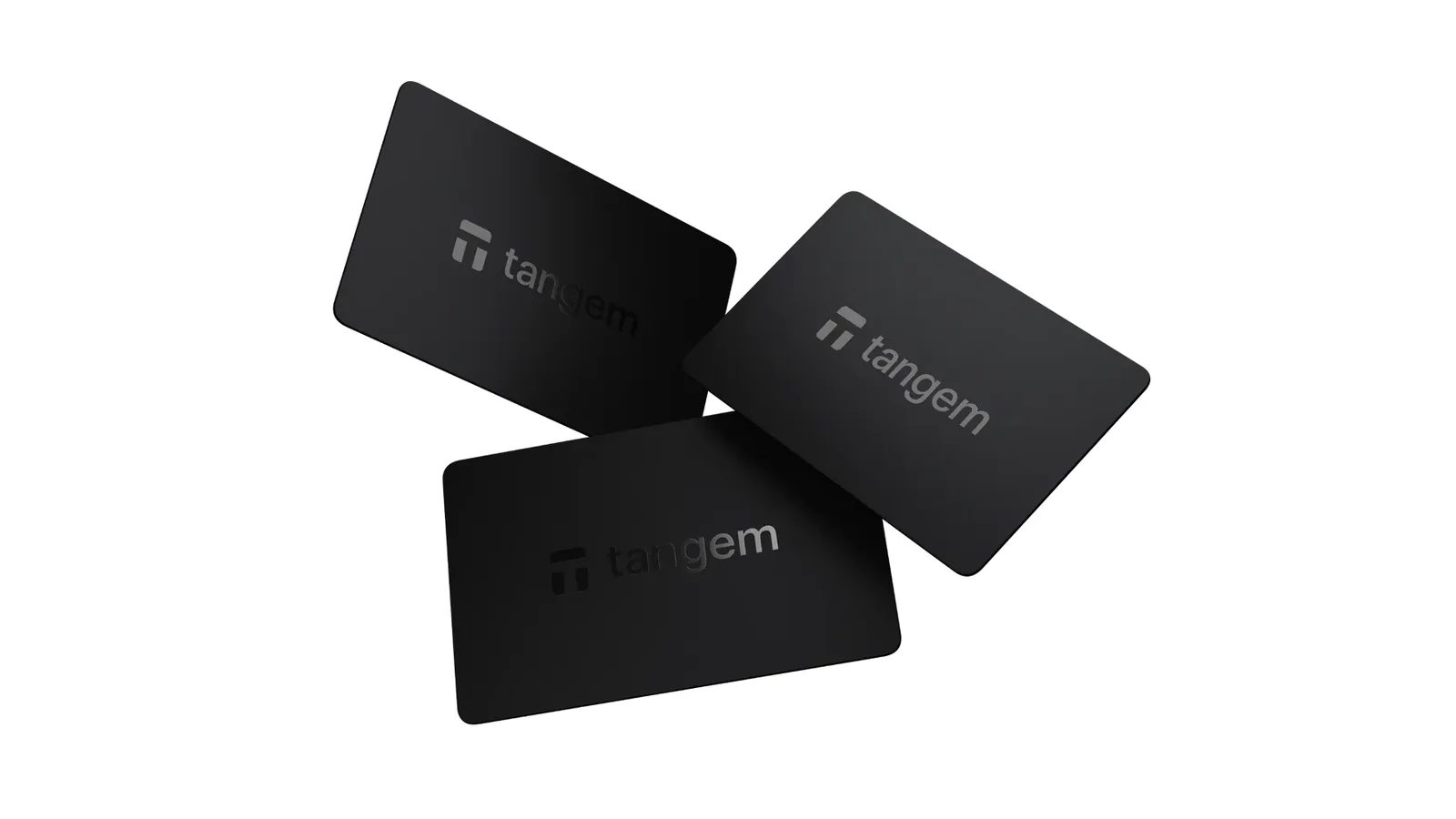
Table of contents
What to Have Ready Before You Set Up Tangem Wallet
- All the cards from your pack, none of them used yet. Each pack comes with two cards or more (a few bundles swap one card for a ring plus two cards), and you’ll want every one of them on the table, since the backup can only happen during setup.
- A phone with full NFC on iOS 15.0 or newer, or Android 6.0 or newer. The iPhone 6, 6s and first-generation SE aren’t supported, and a tablet or PC won’t work at all.
- Tangem’s official app, which you’ll find on the App Store, on Google Play or on Tangem’s GitHub.
- An internet connection that won’t drop, because the backup step pulls certificates from Tangem’s server.
- An access code you’ve settled on in advance. It can be a word, a phrase or a number, with a floor of 4 characters.
- Paper and a pen, but only if you want a seed phrase, which is a list of 12 or 24 words that can bring a wallet back.
Read this before a single coin moves. Crypto sent to a wrong address, or across the wrong network, is gone for good, and there’s nobody who can pull it back. Tangem’s help centre puts it plainly too: coins that arrive over a different network may be lost permanently.
Haven’t dealt with addresses before? Spend five minutes on our explainer about what a wallet address is.
How to Set Up Tangem Wallet, One Step at a Time
I’ve followed the order in Tangem’s own setup guide. Since a Tangem card has neither a screen nor buttons, your phone handles every prompt, and the card only responds when you touch it to the phone.
Step 1. Get the Real Tangem App
Grab the Tangem app from the App Store, Google Play or GitHub. Or just hold a card to the phone’s NFC spot, and you’ll get a prompt that sends you to the store download.
Fake look-alike apps are the usual trap. Before you tap install, confirm Tangem is listed as the publisher, because whatever app you pick ends up in charge of your keys.
Step 2. Scan One Card and Make Sure It’s Genuine
Launch the app and tap “Get started”, followed by “Scan card or ring”. iPhone owners should press the card to the top edge, close to the front camera. Android phones hide the NFC antenna in different places depending on the model, so tap “How to” in the scanning window if you can’t find it.
That first scan doubles as an authenticity test: the app confirms the card came from Tangem and carries genuine Tangem firmware. Seeing “Create wallet” next is the good outcome. It means the card is real and nobody has activated it.
A message saying the wallet’s already activated, when you never did that yourself, calls for a reset and a fresh wallet. An authenticity warning is different. Don’t create anything on that card; get in touch with Tangem Support instead.
Scans that won’t take are the common snag here. Pull the phone out of any thick or metal case, get bank cards out of the way, and keep the card and phone steady until the scan completes.
Step 3. Pick Between Seedless and a Seed Phrase
Slow down. There’s no going back from what you choose here: either create the wallet with no seed phrase at all, or tap “Other options” to generate a phrase or import an existing one.
- Going seedless, the chip’s secure element creates the private key offline, and it stays on the chip. The other cards in your set are the only backup, so if every card disappears, so does the money.
- With a seed phrase, you get 12 or 24 words that can rebuild the wallet on a new Tangem set even after every card is gone. Those words are exactly as secure as the spot where you keep the paper.
There’s no way to bolt a seed phrase onto a seedless wallet afterwards, short of moving the funds away, resetting all the cards and beginning again. Whichever route you take, you hold the keys yourself rather than a company, and our piece on custodial vs non-custodial wallets explains why that matters. I’d pick based on which risk worries you more: losing the cards, or someone finding the words.
Step 4. Create Your Tangem Wallet
Going without a seed phrase? Choose “Create wallet” and tap the same card to the phone a second time, and the chip makes the key.
Seed-phrase users tap “Other options”, then “Generate seed phrase”, and choose 12 or 24 words. Copy them onto paper in the order shown.
Tangem’s warning here is blunt: “You will only be shown this seed phrase once. Do not take a screenshot or a picture of it.”
After “Continue”, the app quizzes you on a few of the words to confirm your copy, and then you tap “Create Wallet” and scan the card.
Coming over from a different wallet works too. Pick “Other options” and then “Import wallet”, type in your 12, 15, 18, 21 or 24 words (and your passphrase, if the old wallet had one), tap “Import”, and scan the card.
Rushing the words is how this step goes wrong. Neither the card nor the app keeps a copy of the seed phrase, so a word you skipped or misspelled can’t be looked up afterwards.
Step 5. Copy the Key to Your Backup Cards
Next comes the backup prompt. Tap “Add a card or ring” and scan card number two; if there’s a third card, tap “Add a card or ring” once more and scan that as well. Finish with “Finalize backup”.
Don’t hold any card back. The key gets cloned a single time, and in Tangem’s words, “If you add one backup device now, you cannot add more backups later.” Bringing in a third card afterwards would mean resetting everything.
Once it’s done, the cards are interchangeable. None of them is the “main” one.
A common slip is tapping the same card twice, which brings up “This card has already been added to the list”. Swap in a card you haven’t scanned yet, or tap “Finalize backup” if one backup is all you’ve got.
Step 6. Choose Your Access Code
Tap “Create” and type the code you picked earlier, which can be any word, phrase or number that’s 4 characters or longer. Then tap “Continue”, type it once more, and hit “Submit”. Every card gets this same code for now, though you’re free to give each card a different one later.
If a stranger picks up one of your cards, this code is all that keeps them out of your funds. Tangem slows guessing down: after six misses, every further try waits one extra second, capped at 45 seconds. Four characters is only the minimum, and I’d go well past it, since a longer code is much harder to guess.
Keeping the card pressed to the phone while you type trips people up. Tangem’s advice is to take it away during code entry and bring it back only once the scan window pops up.
Step 7. Re-Scan Each Card, Then Decide on Biometrics
Now you’ll tap each card to the phone again, one after another. Tangem tells you to “Pay close attention to the card’s number”, which just means scanning whichever card the screen is asking for.
After that, you’re offered Face ID, a fingerprint or another biometric unlock. It’s optional. You’ll still have to tap a card to sign any transaction.
Step 8. Add Your Tokens and Send a Test Deposit
Your home screen already shows BTC and ETH. Add more coins here or skip ahead, then tap “Continue to my wallet”. For tokens you want later, it’s “Add & Manage”, then “Add tokens”, a quick search, switching on the right network, and “Save”.
Receiving works like this: open the token, tap “Receive” (the other path is “Add funds” and then “Receive”), and hit “Copy”. Whoever sends the coins must use the network that matches the address you copied.
Start small. A tiny test deposit costs you a network fee and could save you a lot more, and if you want the other half of the process, our walkthrough on how to send Bitcoin to another wallet covers sending.
Tangem Settings I’d Change After Setup
You’ll reach every one of these through the three dots at the top right of the home screen. I checked the labels in September 2026.
| Setting (checked September 2026) | Where it lives | What it does for you |
|---|---|---|
| Face ID / Biometric Authentication | Under App Settings | Lets you unlock without typing the code, though signing still takes a card tap. |
| Require Access Code | Under App Settings | Biometrics still unlock the app, but sensitive actions ask for your code. |
| Recover access code | Under Device Settings, card by card | Switching it off stops a backup card from resetting the code. Forget the code after that and there’s no way back. |
| Change Access Code | Under Device settings, card by card | Sets a separate code for each card. A change on one card leaves the others as they were. |
| Flip-to-Hide Balances | Under App settings | Turn the phone face down and your balances show as ***. |
| App Currency | Under App settings | Swaps the default USD for another display currency. |
| Name | In the wallet list | Handy for renaming the stock “Wallet” label once you run several. |
If you only change one thing, I’d look hard at “Recover access code” before touching it, because switching it off trades convenience for a lockout you can’t undo.
How Much Time Does Tangem Setup Take?
Tangem doesn’t give a figure. You won’t be installing firmware, because it’s written to the chip once and can never be updated, and there’s no cable or battery in the picture. Card scans eat most of the time, plus copying out the seed phrase if you went that way.
How fast your first deposit lands has nothing to do with Tangem. It depends on the blockchain you use and on whichever exchange or wallet is sending.
On your own sends, Tangem adds no commission of its own, and you choose between the Slow, Market and Fast fee tiers.
Fixing a forgotten access code is the slow part of owning one of these, since you’ll sit through two 15-second countdowns and you’ll need a second card from that same wallet.
When Tangem Setup Goes Wrong
- A card that refuses to scan usually needs the case off, NFC switched on, an unlocked screen and a steady hand. Error codes 30004, 90014 and 50003 mean the phone’s NFC hiccupped, and a restart clears them.
- Getting “A wallet has already been created on this card” most likely means your backup card ended up with a wallet of its own. Close the app completely, move any coins off that card, reset it under “Device settings”, and run the backup again.
- “Certificate cannot be downloaded” shows up when the connection drops mid-backup. Get back online and repeat the step.
- Error 41225 means you’ve mixed old and new cards, and Tangem Wallet 2.0 cards will only back up to other 2.0 cards.
- On an iPhone with big text, the “Continue” button can vanish off the screen. Put Text Size in Control Center, open Tangem, and pick “Tangem Only” to shrink the text in that one app.
- Forgot the access code? Tap “Forgot your code?” and follow along with another card from the same wallet, which won’t work if all your other cards have already been reset.
- No sign of a deposit usually points to a network mismatch between the sender and your receiving address, and coins sent that way may never come back.
Scans still failing? Hit “Cancel” twice in the middle of one, and the “Are you having difficulty scanning your card?” window opens so you can message Tangem Support.
Habits That Keep Your Tangem Cards Safe
- Keep the cards in separate places. If you lose the lot, a seedless wallet goes with them, and Tangem has no way to block a missing card.
- Leave cards out of your phone case. Tangem recommends against it, and someone who steals the phone would walk off with a card too.
- A seed phrase should never be photographed, typed into a website or shown to anyone, because whoever holds it holds your coins.
- Do a small test send first, and check the opening and closing characters of any address you paste.
- Update the app when a new version arrives. Back in December 2024, Tangem admitted that wallets activated with a seed phrase had that information written into the app’s logs, a bug it fixed in App Store 5.19.1 and Google Play 5.19.2.
- Don’t reset a card while it still has coins on it, since resetting wipes that card’s keys.
Curious how a wallet with its own screen handles all this? Take a look at our Ledger Nano X setup guide for a button-and-display device doing the same job.
Tangem Setup Questions
Is one Tangem card enough to set up a wallet?
No. A second-generation Tangem Wallet won’t create a wallet with fewer than two devices, and you can link three at most.
Could I add a new card to my Tangem wallet down the line?
Not to the same wallet. The key is cloned once, during setup, so adding a card means moving your coins elsewhere, resetting every card and building a fresh wallet with the full set.
Is Tangem safer with a seed phrase or without one?
It depends which risk you’d rather carry. Seedless keeps the key only on the chips, so losing every card means losing the funds. A seed phrase lets you restore onto a new Tangem set, but anyone who finds those words can empty the wallet. I’d go seedless only if I trusted myself to keep the cards in separate places.
What if my phone gets lost or broken?
You won’t lose anything. Put the Tangem app on a different phone, tap a card and type your access code, since the phone never holds your keys.
Will Tangem work with my laptop?
No. PCs and tablets lack a built-in NFC module, so it’s a phone or nothing.
I forgot my access code. Now what?
Tap Forgot your code? and approve the reset using another card from the same wallet. Switched off Recover access code earlier? Then the code is gone for good.
Do Tangem cards need a battery or charging?
Never. Each card runs on power from your phone’s NFC whenever you tap it.
The Short Version
You scan a card so the app can check it, decide whether you want a seed phrase, back the key up to every card in the box in one go, and set an access code. Then scatter the cards, and put a small test amount through before you trust the wallet with anything that would hurt to lose.
This article is for general information only and is not financial, legal, or investment advice. Prices and features change; check the vendor’s official page before buying.