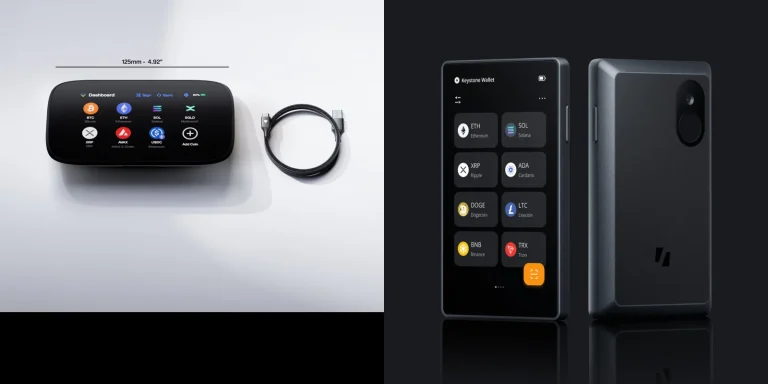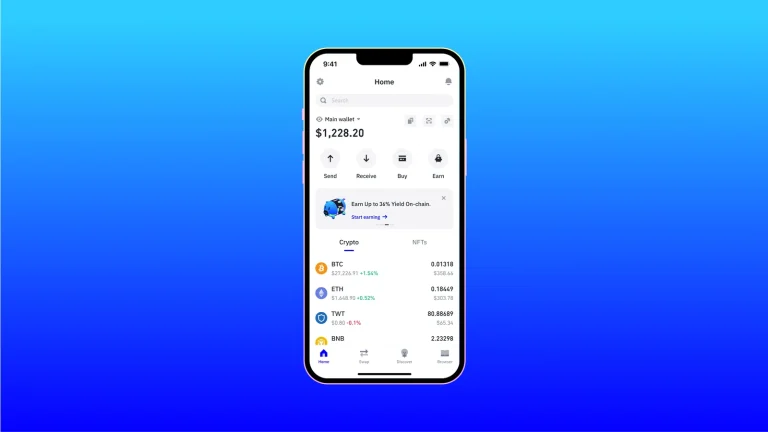

Phantom is where a lot of Solana activity happens: apps, NFTs, swaps. Hook a Ledger up to it and you get all of that while the private keys sit on a hardware wallet that never goes online. Once you’re through this guide, your Ledger accounts will live inside Phantom, and nothing moves until you press a button on the device.
It won’t take long. You’ll want a Ledger you’ve already set up (PIN chosen, recovery phrase written down), a computer running Chrome, Brave or Edge, and a USB cable that carries data rather than just power. On a phone you’d pair over Bluetooth instead, and we get to that once the desktop steps are done.
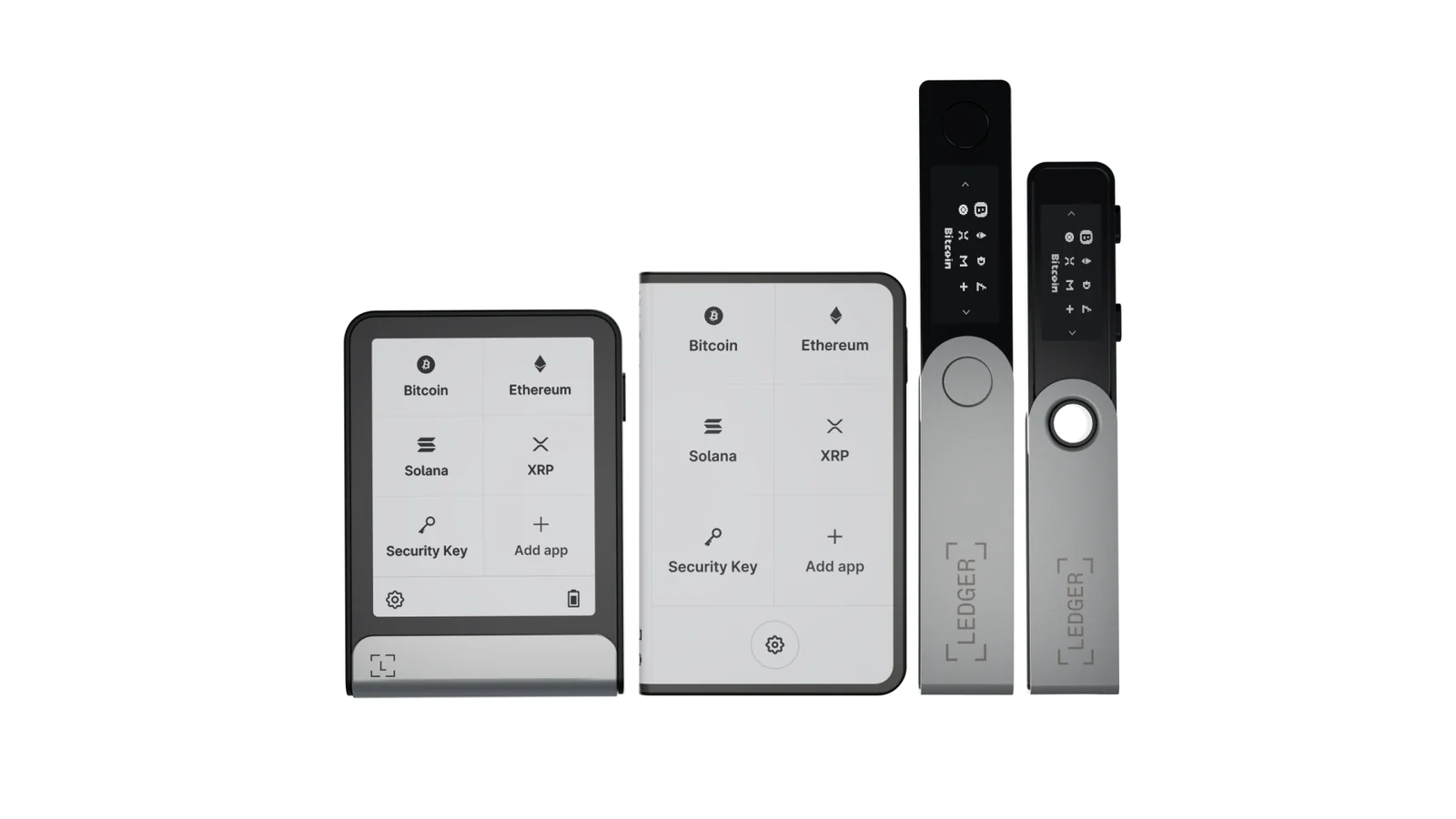
Table of contents
What You’ll Need Before Connecting Ledger to Phantom
- A Ledger model Phantom actually supports. On the browser extension, over a cable, that’s the Nano S, Nano S Plus, Stax and Flex; in the phone app, over Bluetooth, it’s the Nano X, Stax and Flex.
- A device that’s been through its first setup, so there’s a PIN on it and the 24-word recovery phrase is on paper somewhere safe. Still sealed in the box? Our Ledger Nano X setup guide covers that part.
- Ledger Wallet on the computer. It’s the app people knew as Ledger Live, and you’ll only use it to update Ledger OS and add apps to the device.
- Chrome, Brave or Edge. There’s no Phantom for Safari, and the Firefox version has stopped getting updates.
- A cable that can move data, since a charge-only one won’t do.
- A little of each network’s own token to cover fees, so SOL if you’re on Solana or ETH on Ethereum.
Please don’t skim this part. Crypto sent to a wrong address, or over the wrong network, is lost for good, and there’s nobody who can pull it back. Phantom is blunt about it too: it can’t reverse a transaction, and neither can anyone else.
A couple of Ledger models come with caveats. The Nano Gen5 sits on Phantom’s unsupported list, which stings when Ledger is selling it for $179 at the time of writing (September 2026). The Nano X shows up for the phone app only, with no mention on the extension side, so it’s worth checking Phantom’s supported hardware page in case that changes.
How to Connect Ledger to Phantom on Desktop, Step by Step
Step 1. Get Ledger OS and the Solana, Ethereum and Bitcoin Apps Current
Plug the Ledger in, launch Ledger Wallet, and let it bring the firmware (Ledger OS) up to date. After that, head into My Ledger to install or update the Solana, Ethereum and Bitcoin apps. The Ethereum app does double duty for EVM-compatible chains, and in Phantom that means Base and Polygon among others.
Only bother with the apps for networks you’ll actually use. People skip the update all the time, and it’s no coincidence that updating firmware and apps is near the top of Phantom’s own troubleshooting list.
Step 2. Shut Ledger Wallet and Plug the Ledger In
Fully quit Ledger Wallet, not just its window. Phantom says Ledger Live can get in the way of the browser connection, and Ledger Wallet is that same app with a new name. Now plug the Ledger in with your data cable and type in the PIN.
Got a second hardware wallet on the desk? Pull it out, because Ledger says having several devices connected together can cause a conflict.
Step 3. Get the Phantom Extension From phantom.com

Head to phantom.com/download and add the extension to Chrome, Brave or Edge. It costs nothing.
We’d type that address by hand. Phantom itself warns about fake apps and lookalike sites, and it only points people to phantom.com, the App Store and Google Play.
Step 4. Head for “Connect Hardware Wallet”
New to Phantom? Click its icon in the browser toolbar and a fresh tab pops open, where you pick “Create a New Wallet” followed by “Connect Hardware Wallet”.
Existing users take a slightly different route. Open the extension, hit the profile avatar at the top left, choose “Add Account” (it’s the plus icon), and then “Connect Hardware Wallet”. Your Ledger’s recovery phrase never goes into Phantom, at this step or any other, because it simply isn’t needed.
Step 5. Pick Your Ledger and Hit “Connect”
Once Phantom spots the device, another tab opens with a “Connect” button. Click it, choose your Ledger, click “Connect” a second time, and finish with “Continue”.
Nothing showing up? Start with the easy fixes Phantom suggests: unlock the Ledger, double-check that Ledger Wallet isn’t still running, and go again.
Step 6. Choose a Network, Then Open Its App on the Ledger
Solana’s the obvious first pick. Choose it, and when Phantom asks, launch the Solana app on the Ledger.
You’ll go through the connection once per network. That’s a bit tedious, frankly, but afterwards the Ledger accounts sit in Phantom right next to whatever accounts you had before.
Step 7. Try a Small Test Before Anything Big
Move a small amount into the new Ledger account and then send part of it back out. Signing goes like this: Ledger Wallet stays closed, you set up the send in Phantom, unlock the device, open the matching app (Solana, for SOL), and submit. The Ledger then asks you to confirm.
Your monitor can lie. Malware is able to change what a computer displays, and clipboard hijackers are on Phantom’s list of hidden reasons wallets get drained, so compare the address on the Ledger’s own screen. If the idea of an address still feels fuzzy, our explainer on wallet addresses clears it up.
Pairing Ledger With the Phantom Mobile App Over Bluetooth
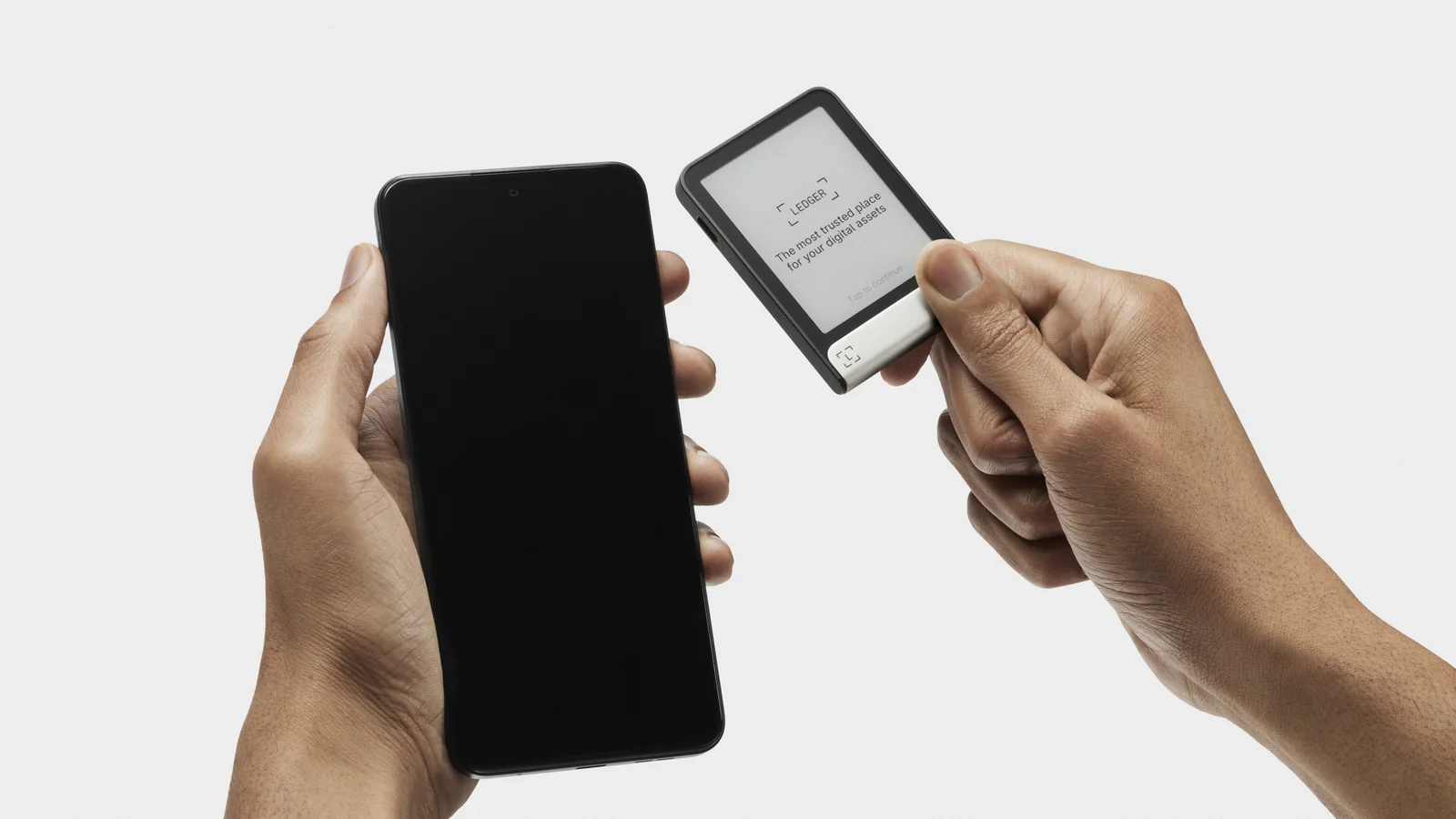
On a phone, iOS or Android, Phantom talks to the Ledger through Bluetooth, and the supported models are the Nano X, Stax and Flex. Nano S Plus owners are out of luck here. It has no Bluetooth, and Ledger’s store page says it doesn’t work with iOS devices at all.
- In a new Phantom install, tap “Import Wallet” and then “Connect Hardware Wallet”. Already set up? On the “Home” tab, tap the account name sitting above your balance, hit the “+” in the upper right, and go to “Add Account” and then “Connect Hardware Wallet”.
- Say yes when the app requests Bluetooth access.
- Hit “Connect your Ledger Device”, pick your Ledger from the list, and tap “Continue”.
- Choose your networks, and open whichever Ledger app Phantom asks for.
- Go to “Select Accounts”, tick the addresses you want, and finish with “Continue”.
Don’t let the Ledger lock while it’s pairing; if it does, Phantom’s advice is to restart the app and start over. Signing later works much the same way: submit, tap “Connect”, give Bluetooth a moment to pair, then approve on the device.
Phantom and Ledger Settings We’d Change
Everything in this table comes from Phantom’s and Ledger’s help centres, checked in September 2026.
| What it is | Where you’ll find it | Our take |
|---|---|---|
| Solana blind signing | On the Ledger, in the Solana app under “Settings” > “Blind signing” | Leave it off until a transaction won’t go through without it |
| Ethereum blind signing | On the Ledger, in the Ethereum app under “Settings” > “Blind signing” > “Enable transaction blind signing” | Switch it on for the app you’re using, and back off afterwards |
| Active Networks | In Phantom, under “Settings” > “Active Networks” | Hide the networks you never touch |
| Auto-Lock Timer | In the Phantom extension, under “Settings” > “Security & Privacy” | We’d pick “Immediately” |
| Connected Apps | In Phantom, under “Settings” > “Connected Apps” | Cut off any site you’ve stopped using |
Blind signing is the one people ask about. It lets the Ledger sign something it can’t show you in full, and Phantom says certain transactions won’t work without it. Ledger would rather you switched it off when you’re done, and a firmware or Ethereum app update does that for you anyway; Ledger’s blind signing article has the details.
Here’s where Phantom earns its place, in our view. Before you sign, it runs a simulation of the transaction and tells you in plain words what’s about to happen, flagging anything that looks off.
How Long Connecting Ledger to Phantom Takes
Very little time. Linking Ledger accounts to Phantom never touches the blockchain, so there’s nothing to pay and nothing to wait on.
The test send is different, since it carries a network fee paid in the chain’s native token. None of that goes to Phantom, which says it doesn’t set or receive any part of the fee; validators get it. Solana has fixed fees that Phantom fills in for you, Bitcoin’s depend on transaction size and how congested the network is, and on Ethereum, Base and Polygon you pay gas, with anything unused refunded.
For fees, Phantom’s suggested cushion is 0.02 SOL on Solana, 0.002 ETH on Ethereum, 0.002 ETH on Base, 0.5 POL on Polygon and 500 satoshis on Bitcoin. Failed transactions don’t get their fee back. And if you throw a swap into the test, expect Phantom’s 0.85% fee on select swap pairs.
When Phantom Can’t Find Your Ledger
- No Ledger detected? Shut the whole browser, check Ledger Wallet isn’t open, unlock the device, and swap in a cable that handles data.
- Still stuck, update the firmware plus the Solana, Ethereum or Bitcoin app, then remove the Ledger from Phantom and add it back. Your funds aren’t affected when an account comes out of Phantom.
- Connected fine but transactions keep failing? Make sure the right app is open on the Ledger, and turn on blind signing in that app.
- When the phone app can’t see the Ledger, confirm Bluetooth is on at both ends and Phantom’s allowed to use it. Leave the Ledger sitting on its home screen without any app open.
- Bluetooth pairing that fails again and again calls for a clean slate: pick “Forget Device” in the phone’s Bluetooth settings and pair from scratch.
- Phantom’s Bitcoin balance not matching Ledger Wallet isn’t a fault. Ledger creates fresh Bitcoin addresses on its own, so your BTC may be spread across different accounts.
- Sent tokens over Arbitrum, BSC or another network Phantom doesn’t cover? According to Phantom, an EVM-compatible wallet can get them back.
Staying Safe With Ledger and Phantom
- Move a tiny amount first, every time.
- Before you approve, read the address and the amount off the Ledger’s screen.
- Don’t ever lift an address out of your transaction history. Phantom warns against it, and it’s exactly the shortcut address poisoning scams count on.
- Your Ledger’s 24 words don’t belong in Phantom, on a website, or in any app. Ledger’s point is that putting them into a software wallet makes your Ledger a hot wallet.
- Treat anyone claiming to be Phantom Support as a scammer, since Phantom doesn’t reach out first and never wants a recovery phrase.
- Tokens that turn up out of nowhere and urge you to visit a site should be hidden and reported.
Ledger and Phantom FAQ
Does Phantom ever get my Ledger’s private keys?
Never. They stay on the Ledger, and each transaction needs the device to sign it.
Will my Ledger model work with Phantom?
Probably, if it’s not a Gen5. Over a cable, the extension handles the Nano S, Nano S Plus, Stax and Flex; over Bluetooth, the phone app handles the Nano X, Stax and Flex. Ledger’s current prices are $59 for the Nano S Plus, $99 for the Nano X, $249 for the Flex and $399 for the Stax, at the time of writing (September 2026).
What about the Ledger Nano Gen5?
No luck. It’s on Phantom’s unsupported list.
Is blind signing required?
Sometimes. Phantom says certain transactions need it, so turn it on in the Ledger app you’re using and switch it off once you’re finished.
Could I use a Trezor with Phantom instead?
No. Every Trezor and Tangem model is on Phantom’s unsupported list.
Which networks can a Ledger use through Phantom?
Phantom covers Solana, Ethereum, Base, Polygon, Robinhood Chain, Bitcoin and HyperEVM, and the Ledger will need its Solana, Ethereum or Bitcoin app depending on which one you choose.
The Short Version
Bring Ledger OS and the Solana, Ethereum and Bitcoin apps up to date, quit Ledger Wallet, and grab Phantom from phantom.com. After that it’s “Connect Hardware Wallet”, your Ledger, a network, the matching app on the device, and a small test send you approve with a button press.
What you end up with is two checks on every transaction, Phantom’s preview on the screen and the Ledger’s confirmation in your hand, and we like that pairing a lot. If the hardware itself is still undecided, our Ledger vs Trezor comparison lays out the trade-offs, and the Ledger Stax review looks at a model Phantom supports on both the extension and the app.
This article is for general information only and is not financial, legal, or investment advice. Prices and features change; check the vendor’s official page before buying.