
Nothing beats MetaMask for getting into an Ethereum app quickly, and that convenience has a price: it’s a hot wallet, so the keys live on your machine, encrypted but still reachable by anything that gets onto that machine. Bolting a Ledger onto it changes the arrangement. Signing moves to the hardware, and the extension is reduced to a viewer for accounts it has no power to drain.
We’ll walk through the desktop browser route first, then the Bluetooth pairing that works with a Ledger Nano X and the MetaMask phone app. Set aside roughly 20 minutes for your first attempt. Almost all of that goes on updates, weirdly enough, not on the pairing.
Have ready: a Ledger whose PIN you’ve already chosen, Ledger Wallet installed on the computer, either Chrome or Brave, and the USB cable from the box.

Table of contents
What to Have Ready Before You Plug In
Gather the lot before anything goes into a USB port.
- A Ledger you’ve finished initializing, meaning it has a PIN and you’ve copied the recovery phrase onto paper.
- Ledger Wallet on the latest release. It’s the desktop app that went by the name Ledger Live until the rebrand.
- Current Ledger OS firmware. You don’t have to hunt for it, because Ledger Wallet flags an out-of-date device the moment you plug in.
- A current build of the Ethereum (ETH) app sitting on the device.
- Chrome, or Brave. According to Ledger, U2F compatibility broke in Firefox 114, and Firefox has been a dead end ever since.
- Whichever USB cable shipped inside the packaging.
- A copy of MetaMask no older than version 10.5.2.
Read this bit twice. A payment aimed at the wrong address, or pushed down the wrong network, is simply gone, and no one on earth can claw it back for you, not Ledger, not MetaMask, not us. Your defense is the device screen, so read the address there before you approve anything.
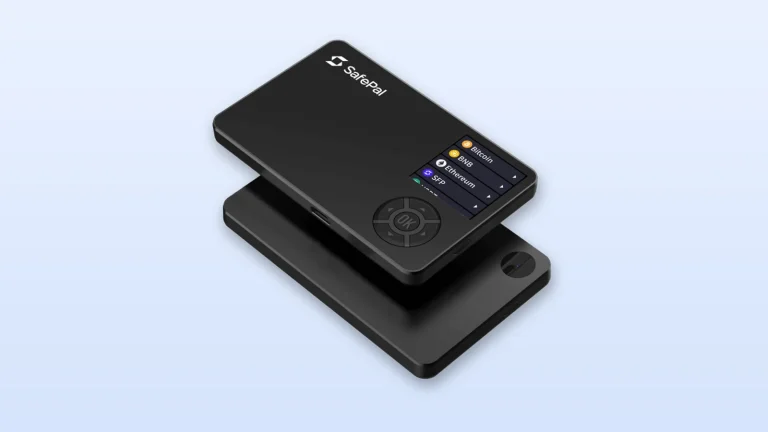
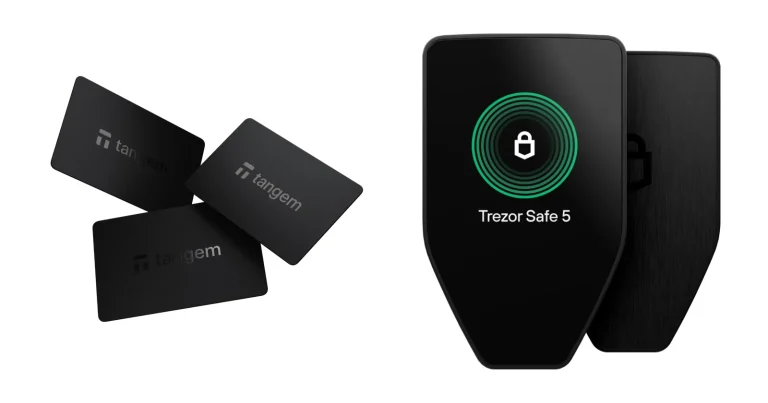
Haven’t picked a device yet? Our list of the best hardware wallets for MetaMask runs through what else is out there.

How to Connect Ledger to MetaMask, Step by Step
Step 1. Get the firmware and the Ethereum app current
Launch Ledger Wallet, connect the device, and give it a minute to inspect the firmware. Both the newest Ledger OS build and the newest Ethereum (ETH) app are required before you try anything else, per Ledger’s official connection guide.
Missing the Ethereum app entirely? Grab it from the My Ledger section.
Shut Ledger Wallet down once everything is current. Leaving it running can clash with MetaMask, Ledger says, and that clash is what produces the 0x6501 error later on.
Step 2. Put MetaMask in Chrome or Brave
Head over to metamask.io/download, pick “Browser Extension”, and then pick Chrome. Builds exist for Firefox, Brave, Edge and Opera too. Since Firefox has lost its ability to reach a Ledger, though, your real options are the two we keep naming.
Install it, then pin the fox icon to your toolbar. Hunting through the extensions menu every time gets old fast.
Step 3. Set up a throwaway MetaMask wallet
Hit “Create a new wallet”, followed by “Use Secret Recovery Phrase”. Pick a password, confirm with “Create password”, and when the backup screen appears, Ledger’s own instructions point you at “Remind me later” and then “Continue”. Finish by choosing “Open Wallet”.
Skipping a backup feels wrong, we know, so here’s why it isn’t. Think of this MetaMask wallet as an empty container. Everything with money in it will be derived from the Ledger, and that backup is the phrase already sitting on paper in your drawer.
Whatever you do, don’t reach for “Import an existing wallet” and key in the 24 words from your Ledger. In Ledger’s words, doing so turns the device into a hot wallet and compromises the security of your assets. Pushing a MetaMask-generated phrase onto the Ledger is just as wrong-headed, since that phrase was born on an internet-connected machine and has no business protecting cold storage.
Step 4. Launch the Ethereum app on the Ledger
Connect the device over USB and punch in the PIN. Owners of a classic Ledger Nano should scroll along to the Ethereum icon and squeeze both buttons together. “Application is ready” turns up on the little screen.
Touchscreen owners just tap the Ethereum icon. Up comes the Ethereum logo, plus the sentence “This app enables signing transactions on the Ethereum network.” Leave MetaMask alone until you see it, because jumping the gun here is what trips up more people than any other single thing in this process.
Step 5. Point MetaMask at the hardware wallet
Inside MetaMask, head into the Account Settings, choose “Add Wallet”, and follow that with “Add a Hardware Wallet”. Pick “Ledger”, then press “Continue”.
A browser dialog headed “MetaMask wants to connect to a HID device” should appear next. Find your Ledger by name in it and hit “Connect”. An empty list points at one of three things: a closed Ethereum app, a locked device, or Chrome refusing HID access.
Step 6. Pick the accounts to bring across
Give it a second and the Ethereum accounts derived from your Ledger will fill the panel. Check the box beside whichever one you’re after, then press “Unlock”. Sitting at index 1, right at the top, is Ethereum 1, the first Ethereum account you ever made in Ledger Wallet.
Several boxes at once is fine, and it’s handy if you like keeping savings apart from spending money. They’ll land together beneath a “Ledger” header in your account list. Bear in mind that this pipe only carries EVM accounts, which is to say the Ethereum-compatible ones, so anything on Bitcoin or Solana stays behind in Ledger Wallet.
Step 7. Switch on blind signing
Moving plain ETH from A to B works with no extra fiddling. Smart contracts are the exception, and they cover roughly everything interesting you’d do through MetaMask, so the Ethereum app needs blind signing switched on.
Older documentation calls it Contract Data. Same toggle, newer label.
Got a Ledger Stax, Ledger Flex or Ledger Nano Gen5? Open the Ethereum (ETH) app, hit the wrench icon up in the corner to reach App Settings, and flip the “Blind signing” toggle. Your secure screen reports Blind Signing as Enabled, and Ledger’s advice is to shut it off again as soon as you’ve finished.
Doing It on Your Phone With a Ledger Nano X
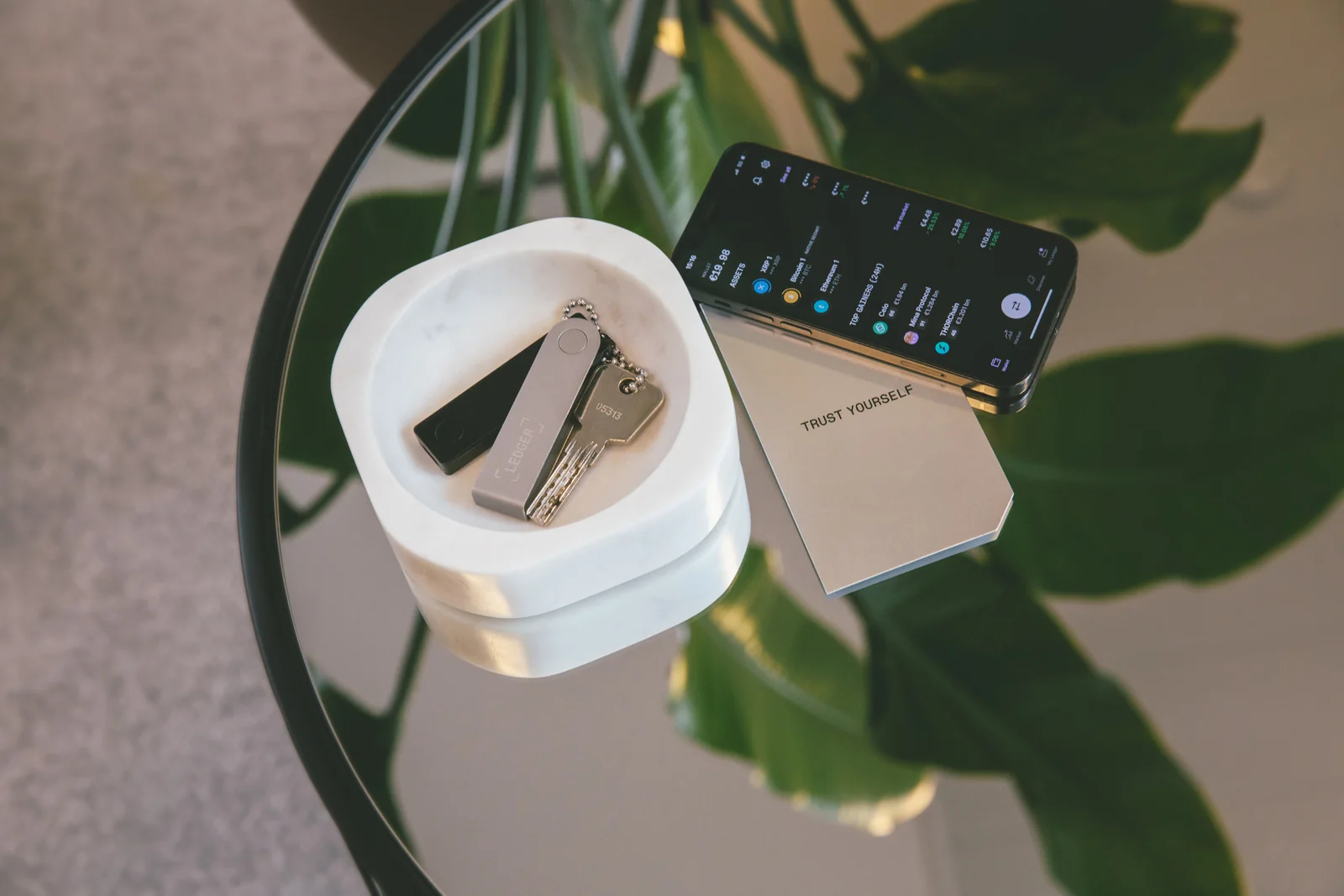
Phones talk to the Ledger over Bluetooth and nothing else. Cables are out, which leaves the Ledger Nano S Plus stranded here, though it pairs happily with the browser extension. There’s a second catch: the MetaMask app will sync exactly one Ledger account, no more, as things stand.
iPhone owners should get MetaMask up to v7.17.0 at minimum before starting. The App Store may not push that one automatically.
Next, confirm Bluetooth is live on the Nano X itself. Wake it and unlock, press and hold both buttons for the Control Center, walk across to the Bluetooth symbol using either button, and look for a status of enabled.
- Fire up the MetaMask app and head into Accounts.
- Hit “Add account or hardware wallet”.
- Choose “Hardware wallet”.
- Pick Ledger. Bluetooth has to be running on the handset and on the Nano X at the same time.
- Tap your Nano X in the list, then “Continue”.
- Two codes appear, one on the Ledger and one in the app. Matching? Tap “Pair”.
- Check the account box and press “Unlock”.
The Five Settings We’d Check First
Nearly every complaint we’ve read about this pairing traces back to one of five toggles. Ledger has written up all five.
| Setting | Where you’ll find it | Our advice |
|---|---|---|
| Blind signing | In the Ethereum app’s own settings, on the device | Turn it on for smart contract work and turn it back off afterwards |
| HID devices | chrome://settings/content/hidDevices | Sites need permission to reach HID devices, so allow it |
| Connection type | MetaMask Settings, then Advanced | Recent builds default to WebHID and have dropped the option altogether |
| Expand View | Behind the three dots icon in MetaMask | Move MetaMask into a full tab whenever the popup starts acting up |
| Reset Account | MetaMask Settings, then Advanced | Harmless, but keep it for last because your Activity tab history disappears |
Worth knowing: blind signing quietly reverts to off whenever the firmware updates, and again whenever the Ethereum app updates. You’ll be re-enabling it periodically.
So How Long Is This Going to Take?
Two minutes, give or take, for the pairing. Everything ahead of it is the slow part. Budget 10 to 20 minutes for a Ledger OS update, plus a bit more while your coin apps get reinstalled afterwards.
None of this reaches the blockchain, which means zero confirmations to wait on and zero gas to pay. Gas, by the way, is the network fee that gets your transaction written into a block. It starts costing you the moment you send something, and swaps inside MetaMask carry an additional 0.875% service fee baked into the quote.
When It Won’t Connect: Errors and Fixes
- The HID window stays empty. Open the Ethereum app first and hold off until the device reports that the application is ready.
- UNKNOWN_ERROR (0x6501) comes back at you. Either the app isn’t running or the My Ledger tab is still open in Ledger Wallet. Move over to the Portfolio tab, launch the ETH app, and have another go.
- UNKNOWN_ERROR (0x6b0c) shows up. Your Ledger is plugged in but locked. Enter the PIN and retry.
- UNKNOWN_ERROR (0x650f) appears. Quit Ledger Wallet, wake the device so it isn’t sitting on the screen saver, get the Ethereum app open, and begin the connection from scratch.
- UNKNOWN_ERROR [object Object] interrupts a send or a mint. Bring the firmware, the Ethereum app and the Ledger Wallet app all up to date.
- Firefox refuses to cooperate at all. Ledger points you towards Chrome or Brave, and that’s the fix.
- You’ve left two hardware wallets plugged in. That’s a documented source of conflict, so pull out whichever one you’re not using.
- A network you need isn’t listed. There’s a Ledger tutorial on using Chainlist that adds any EVM network and switches you onto it.
Habits That Keep Your Ledger Safe
- Fire off a tiny test amount to the fresh Ledger account before anything serious follows it.
- Trust the address printed on the Ledger, never the one in your browser window. Address-swapping malware is a real thing and this is the check that catches it.
- Keep an eye out for address poisoning. Scammers drop a worthless transaction on you from an address that mimics one of yours almost exactly, hoping you’ll copy theirs out of your history later. Don’t copy addresses from history at all.
- Those 24 words go into MetaMask never, into a website never, into any app never. Ledger’s support team won’t ask for them either.
- Once the dApp that needed blind signing is done with, flip the toggle back.
- Give your token allowances a look every so often and revoke whatever you’ve stopped using.
- Fuzzy on how addresses and networks fit together? Our piece on what a wallet address is is worth reading before your first send.
Ledger and MetaMask FAQ
So is my crypto sitting inside MetaMask now?
No. Ledger’s position is that your private keys never leave the device and MetaMask can’t touch them. The extension is doing the same job Ledger Wallet does, which is drawing pictures of accounts it doesn’t control.
Which Ledger models can I use with MetaMask?
All of the current ones pair with the browser extension over USB. That covers the Ledger Nano S Plus at $59, the Ledger Nano X at $99, the Ledger Nano Gen5 at $179, the Ledger Flex at $249 and the Ledger Stax at $399, prices taken at the time of writing (September 2026). The phone app is fussier and works with the Ledger Nano X alone.
Why demand a Secret Recovery Phrase I’m never going to use?
Because a hardware account has to live inside some MetaMask wallet, and MetaMask insists on generating one before it will host anything. Ledger’s walkthrough tells you to build that wallet and then hit Remind me later when it asks about backups. Your funds sit in accounts derived from the Ledger, so the Ledger’s phrase is the backup that counts.
Does blind signing have to stay on?
No, and Ledger would rather you switched it off after use. It also resets itself whenever the firmware or the Ethereum app updates, so re-enabling it now and then comes with the territory.
Any chance of getting this working in Firefox?
Realistically, no. U2F compatibility broke in Firefox 114, which killed the ability to connect a Ledger or any other signer, and Ledger now steers people to Chrome or Brave.
Can a Ledger protect the MetaMask account I already have?
Sadly not, and Ledger says so plainly. What you can do is connect a Ledger account and then move the balance over with an ordinary on-chain transaction.
Wrapping Up
Bring the firmware and Ethereum app up to date, quit Ledger Wallet, and get MetaMask installed in Chrome or Brave. From there it’s a new MetaMask wallet, the Ethereum app open on the Ledger, “Add a Hardware Wallet”, and the account you want unlocked. Blind signing goes on ahead of your first smart contract and off again once you’re done.
If the update step is new to you, how to update Ledger firmware safely covers it.
Through all of it the keys stay put. Approval still happens on the Ledger screen, which is the entire reason for going to this trouble.
Comparing brands rather than models? Try our Ledger vs Trezor comparison. For the stage before this one, there’s the Ledger Nano X setup guide, and if you’d like MetaMask judged on its own merits, we put it head to head in MetaMask vs Coinbase Wallet.
This article is for general information only and is not financial, legal, or investment advice. Prices and features change; check the vendor’s official page before buying.