
Updating a Ledger’s firmware isn’t hard, but it’s one of those jobs where a little prep saves a lot of grief. Follow along and your device ends up on the newest Ledger OS (Ledger’s current name for its firmware), with your apps put back afterward.
Have these on the desk: the device, its USB cable, the Ledger Wallet app that used to be called Ledger Live, and your Secret Recovery Phrase. I’ve covered the Nano X, Nano S Plus, Flex, Stax and Nano Gen5, whether you update from a computer or a phone.
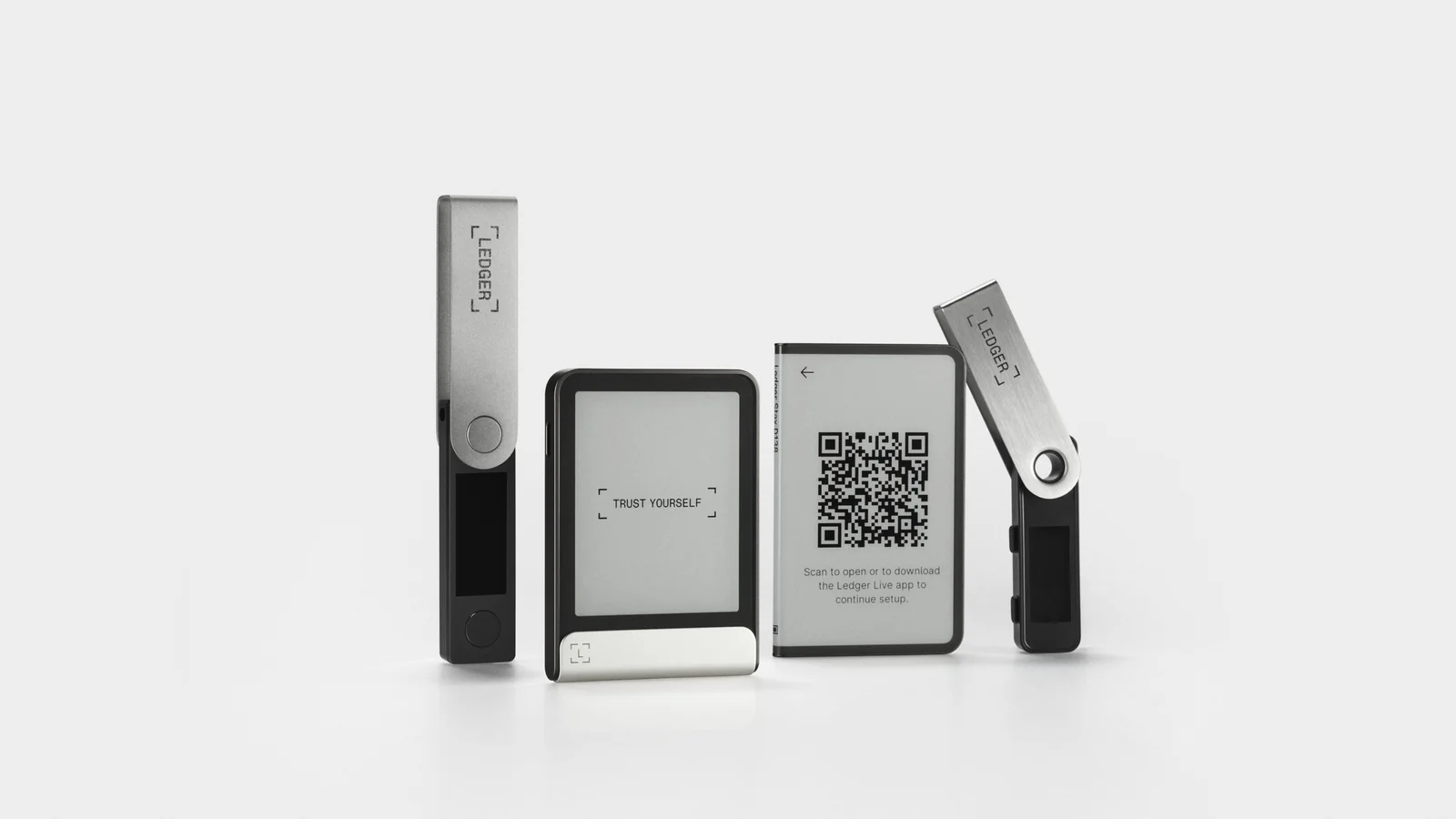
Table of contents
What to have ready before you update Ledger firmware
- The Ledger itself, plus a USB cable that handles data.
- A computer on macOS 12.0, Windows 10 (64-bit) or Linux Ubuntu 20.04 (64-bit) or later. An Android phone works for USB updates too.
- Ledger Wallet on its newest release, which was 4.19.0 for desktop and 4.18 for mobile when I checked in September 2026.
- Your Secret Recovery Phrase (the 12 to 24 words backing up your keys), written down and close by.
- The PIN you unlock the device with.
- Enough uninterrupted time that nothing gets unplugged halfway.
According to Ledger’s update guide, an update “has no impact on your crypto assets.” The same company admits there’s “a very small chance” the device resets while updating. If that happens, your recovery phrase is the one route back to your coins.
Lost the phrase? Then don’t update. Ledger suggests shifting your funds into a temporary account you control before anything else, and that transfer is where you need real care, because sending on the wrong network or to the wrong address means the money’s gone for good and nobody can reverse it.
Tablets can’t run a Ledger OS update at all. And once an update’s installed, there’s no rolling back to an older version.
How to update Ledger firmware safely, step by step
Step 1. Make sure your recovery phrase is right with Recovery Check
Ledger suggests a recovery check before updating if you’ve any doubt about your written phrase. Open My Ledger inside Ledger Wallet, look for “Recovery Check” in the app catalog, and hit “Install”.
Launch it on the device, pick 12, 18 or 24 words, and key in each one. Nano X and Nano S Plus owners have to spell out every word completely. When the backup lines up, you’ll get “Phrase is correct”.
Remove the app once you’re finished, since it’s a space hog.
Passphrases are a blind spot here: Recovery Check has no way to test one, so keep a separate backup if you’ve added one. For how the phrase gets generated to begin with, see our guide to setting up the Ledger Nano X.
Step 2. Get Ledger Wallet onto its newest version
First on Ledger’s list is the app itself. On a computer, hit “Download update” when the banner shows up, followed by “Install now and relaunch”, and your accounts and settings carry straight over.
Auto-update not working? Grab the installer from the official Ledger Wallet page; there’s no need to remove the version you already have. Phone users get it from the App Store or Google Play.
I’d stick to Ledger’s site and the official stores for this download, full stop. Fake copies of the app turn up in scam emails.
Step 3. Find out which Ledger OS version is on your device
With a Nano X or Nano S Plus, unlock it, then keep both buttons held for 3 seconds so the Control Center opens. Head to Settings > General > Ledger OS Version and press both buttons; your version is the figure listed under “Secure Element”.
Flex, Stax and Nano Gen5 owners tap the settings icon at the bottom left, choose “About”, then tap “Ledger OS version”. Running older firmware? The label reads “Firmware version” or “OS Version” rather than “Ledger OS Version”.

Step 4. Plug in and open My Ledger
On desktop, go to My Ledger through the Profile menu. Plug the device in over USB and type your PIN to unlock it, then approve My Ledger’s access on the device if it asks.
What if there’s no update banner? Usually it just hasn’t reached you, since Ledger pushes updates out in stages. Confirm Ledger Wallet is current under Settings > About and come back later.
Step 5. Kick off the Ledger OS update
For a Nano X or Nano S Plus, click “Update OS” on the notification banner and go through the instructions in the pop-up window. Tick the box saying your recovery phrase is written down and to hand, then press “Continue”.
Touchscreen models (Flex, Stax, Nano Gen5) use the “Update” button inside the “Ledger OS update available” banner instead. Read what it says, then click “Continue”.
Step 6. Approve the update on your Ledger’s screen
You’ll see “New OS” plus a version number on a Nano X or Nano S Plus. Tap the right button until “Confirm update” appears, press both, and put in your PIN.
Touchscreen devices ask “Update Ledger OS?” alongside the version. Tap “Install”, then your PIN.
The old Nano S displays an Identifier, and it should match the one in Ledger Wallet before you pick “Perform update”. Take this slowly, because those screens cycle on their own and an early press of the right button installs the update before the Identifier ever comes up.
Step 7. Leave it plugged in until the update’s done
Expect a restart and a “Processing” screen, or “Installing update” then “Updating OS” on a touchscreen model. Meanwhile Ledger Wallet cycles through a few progress loaders. Don’t unplug anything now, as Ledger is blunt that you should never disconnect at this point.
Once Ledger Wallet reads “Your Ledger OS is up to date”, you’re finished. Your Nano X will want its PIN and then puts your apps back, while touchscreen owners click “Restore apps”.
Step 8. Give the device a quick once-over afterward
Nothing changes with your PIN, recovery phrase, Bluetooth preferences or lock time. Apps come back by themselves, as do language packs and lock screen pictures.
Seeing “Welcome to Ledger Nano X”, or the equivalent welcome screen on another model? That means a reset happened. Your crypto’s fine provided you still have the recovery phrase, so restore from it and reinstall the apps.
Updating Ledger firmware from your phone
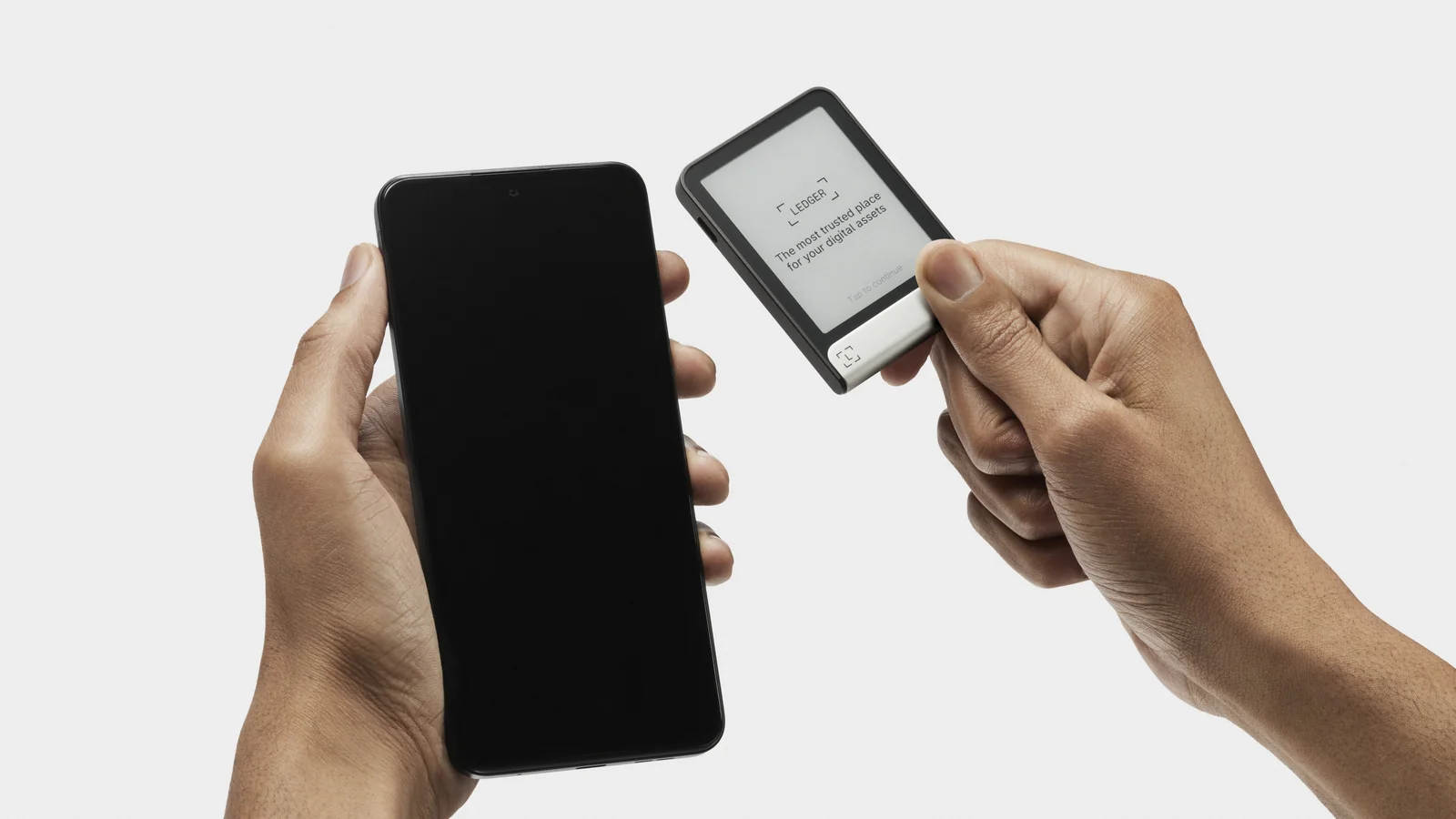
Flex, Stax and Nano Gen5 devices take their updates over Bluetooth through the Ledger Wallet mobile app. Hit “Update now”, unlock the Ledger, and wait. It’ll restart more than once, you’ll unlock it again after the final restart, and you shouldn’t leave the app until it’s through.
Bluetooth updates on a Nano X only work from Ledger OS 2.4.1 up. Anything older needs a cable, which I find a bit annoying, because iPhones don’t support USB connections with Ledger devices and that first jump has to happen on a computer or an Android phone.
With a Nano S Plus, phone updates mean Android plus a USB cable. Tap the device under the USB section of My Ledger, choose “Update”, tick the box, then tap “Continue”.
Ledger OS settings worth checking once you’ve updated
Now that the update’s in, hold your version number up against Ledger’s newest releases below, and give your Bluetooth pairing a look too.
| Ledger device | Newest Ledger OS (September 2026) | Release date |
|---|---|---|
| Ledger Nano X | 2.7.1 | 11 May 2026 |
| Ledger Nano S Plus | 1.6.1 | 11 May 2026 |
| Ledger Flex | 1.6.1 | 11 May 2026 |
| Ledger Stax | 1.10.1 | 11 May 2026 |
| Ledger Nano Gen5 | 1.1.1 | 11 May 2026 |
Some updates knock Bluetooth pairing out. Following the November 2025 release, Bluetooth models needed pairing from scratch: restart the Ledger, open My Ledger in the mobile app, and tap “Add new +”. If you never renamed it, the device may appear under a shorter name, “01AB” instead of “Ledger Flex 01AB”.
Bluetooth occasionally switching off after an OS update was a bug, and Ledger fixed it in Nano X 2.7.1 and Stax 1.10.1.
Still on the original Ledger Nano S? It’s discontinued, and Ledger is winding down support for it. The Nano S Plus is the supported successor, and our comparison of the Ledger Nano S and Nano X lays out how the models differ.
How long does a Ledger firmware update take?
Ledger doesn’t give a figure for a normal Ledger OS update. You’re looking at a download, a few restarts and an automatic app reinstall before it wraps up.
Waiting can creep in two other ways. Because releases go out in stages, the banner might not show for you right away. Then there’s “Booting” mode, which a device enters when it detects unusual USB activity, and Ledger warns it can take several hours to hit 100%.
Ledger firmware update problems and how to fix them
- No update banner at all? Update Ledger Wallet, look under Settings > About, and give the staged rollout some time.
- A Nano X stuck in Bootloader usually needs Ledger Wallet restarted and My Ledger reopened so the update can carry on. Another computer is the fallback.
- When a Nano S or Nano S Plus sits in Bootloader with the loader already at 100%, restart Ledger Wallet using CTRL + R (Windows, Linux) or Cmd + R (macOS). Windows users should also launch it as an administrator.
- Flex, Stax or Nano Gen5 frozen in Update mode? Navigate away from My Ledger and back, and Ledger Wallet should offer to pick up where it left off. Started on a phone? Finish on desktop.
- A “Booting” screen with a percentage means plugging into a wall charger or computer and waiting for 100%. There’s a reset at the end, so have your phrase ready to restore.
- Apps, language packs or lock screen pictures missing after an update that got stuck have to be put back by hand from My Ledger.
- Bluetooth refusing to connect after updating? Power-cycle the device, delete the old pairing on your phone, and pair again from My Ledger.
- The “Your Operating System version is outdated” message in Ledger Wallet is about your computer, not the Ledger, so bring the computer’s operating system up to date.
Safety tips for Ledger firmware updates
- Lost your recovery phrase? Don’t update, and get your funds moved first the way Ledger describes.
- Ledger flags unsolicited “update your Ledger firmware now” emails as phishing. Send any you get to [email protected].
- Your recovery phrase never goes into a computer, phone or website; you only enter it while setting up the Ledger device.
- Get Ledger Wallet from Ledger’s official page or the proper app stores and nowhere else.
- Once updated, try a small test transaction before anything big.
- Trust what the device screen says over everything else. Malware can replace a wallet address you’ve pasted, so read the address, amount and fees on the Ledger before signing.
Ledger firmware update FAQ
Will a Ledger firmware update touch my crypto?
No. Ledger states updates have no impact on your crypto assets. Your recovery phrase backs up the keys, which is exactly why you keep it safe in case of a reset.
Is my recovery phrase needed for a Ledger update?
Not typed in, no. Ledger does ask you to confirm it’s written down and accessible, and it’s your only way back in if the device resets.
Can Ledger OS be rolled back to an older version?
No, and that’s deliberate: Ledger blocks downgrades for security reasons.
Is it possible to update a Ledger from an iPhone?
It depends on the model. Flex, Stax and Nano Gen5 update over Bluetooth in Ledger Wallet mobile, and so does a Nano X running Ledger OS 2.4.1 or newer. The Nano S Plus can’t, since it needs USB through Android or a computer.
Where’s my Ledger OS update?
Probably not rolled out to you yet. Update Ledger Wallet and look again later.
My Ledger reset mid-update, now what?
Restore with your Secret Recovery Phrase and reinstall your apps; as long as you’ve got the phrase, the crypto’s safe.
Should I bother updating a Ledger I hardly use?
Yes. Ledger recommends it, and new app versions only run on the latest Ledger OS.
The short version on updating Ledger firmware
Most of a safe Ledger firmware update happens before you click anything. Check your recovery phrase, bring Ledger Wallet up to date, launch the update in My Ledger, approve it on the device, and keep it connected until “Your Ledger OS is up to date” appears.
Shopping for something newer? Our Ledger Stax review and the Ledger vs Trezor comparison are sensible places to start.
This article is for general information only and is not financial, legal, or investment advice. Prices and features change; check the vendor’s official page before buying.