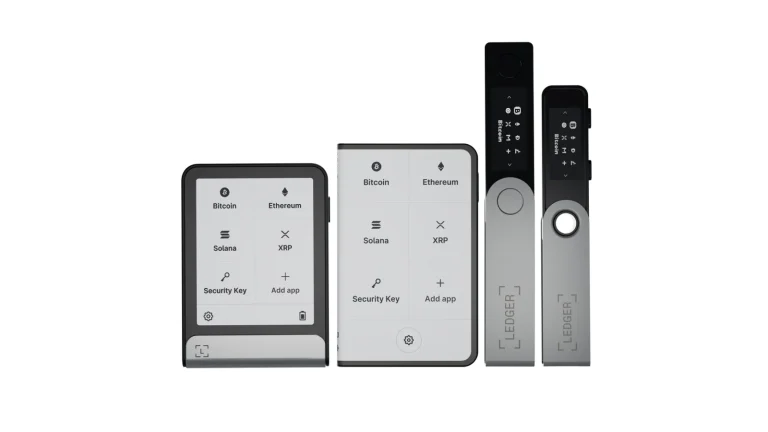

When you’re done here, you’ll have a receive address for your Ledger account that you’ve checked on the device itself, so it’s safe to paste into an exchange withdrawal. It doesn’t take long if your Ledger is already set up.
I’d much rather spend a little time on that check than paste an address nobody has verified.
You’ll need a Ledger with a PIN, the Ledger Wallet app (that’s Ledger Live under its new name), and the coin’s app on the device. If wallet addresses are still a fuzzy idea for you, start with our explainer on what a wallet address is.
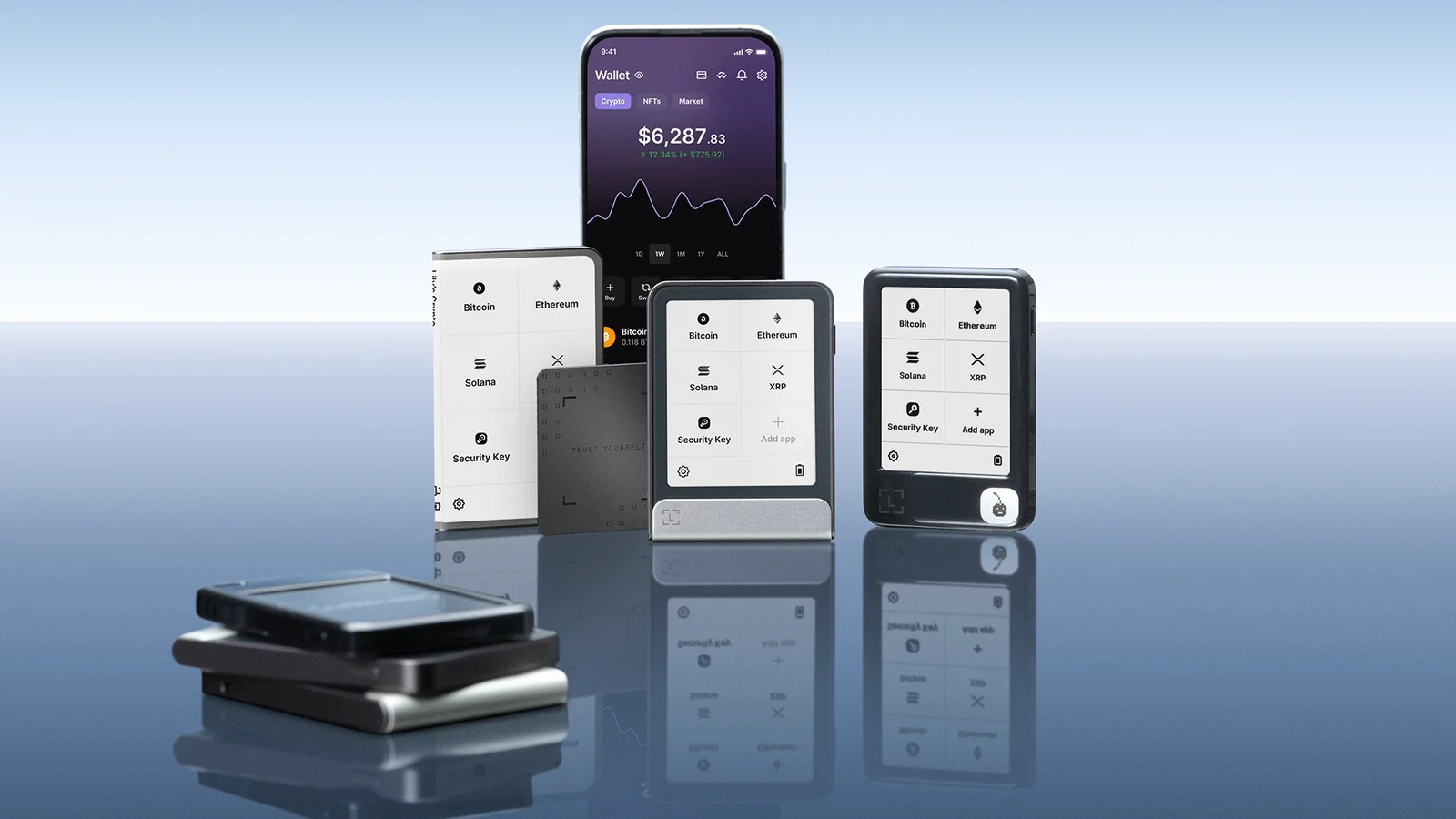
Table of contents
What You Need Before You Look for Your Ledger Address
Ledger’s Receive crypto assets page spells out the groundwork.
- Get the newest Ledger Wallet onto your computer or phone. Ledger Live was renamed Ledger Wallet, and both the desktop and mobile apps carried the new name by November 3, 2025.
- Have your Ledger set up, with the PIN ready to unlock it. Haven’t got that far? Our Ledger Nano X setup guide walks through it.
- Install the coin’s blockchain app on the device, say the Bitcoin (BTC) app if you’re receiving bitcoin. Any EVM-compatible chain runs through the Ethereum (ETH) app.
- Make sure Ledger Wallet already has an account for that coin.
- Know which network the sender is going to use, like Ethereum for ETH or Tron for USDT (TRC20).
Please don’t skip this bit. A wrong network or a wrong address can mean the money is simply gone, because once a blockchain transaction confirms, no one can undo it.
Finding Your Ledger Wallet Address, One Step at a Time
Step 1. Put the Right Coin App on Your Ledger
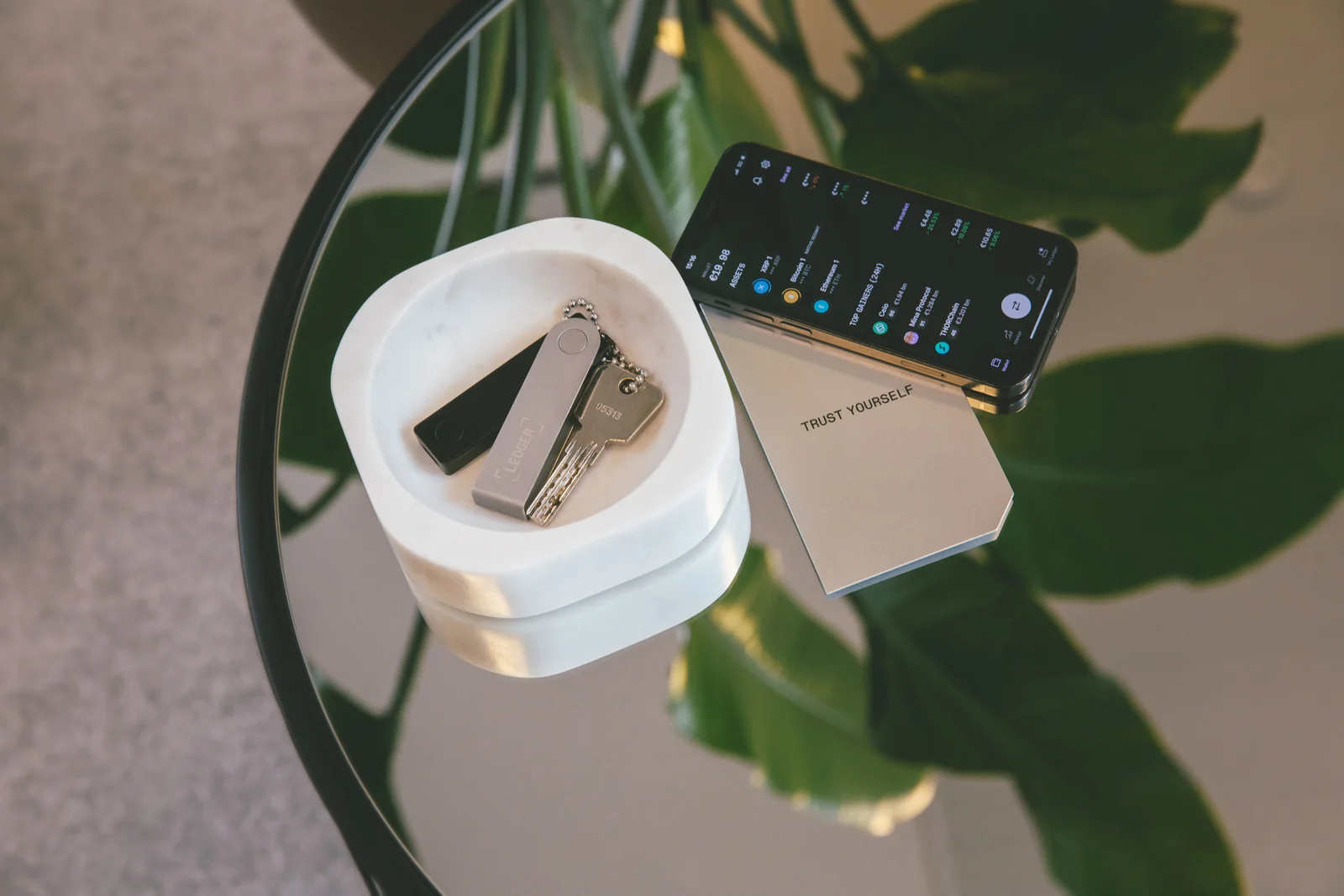
On the desktop app, the Profile icon sits in the top-right corner; click it and pick “My Ledger”. Plug in and unlock the Ledger, then let the connection through, which means pressing both buttons on a classic Nano or tapping “Allow” on one of the touchscreen models.
Find your coin in the “App catalog” and hit “Install”, and you’ll see “Processing…” on the device until it finishes. Space on Ledger devices is limited, so you may have to remove an app first. That’s harmless.
Your coins aren’t inside the app, since the private keys never leave the device.
Step 2. Add That Coin’s Account in Ledger Wallet
Open “Accounts” and click “+ Add account”. Choose the coin, hit “Continue”, connect and unlock the Ledger, then open the coin app once Ledger Wallet asks for it. Let the scan finish, tick the account you’re after, and click “Add account”.
Bitcoin gets a Native SegWit account unless you say otherwise. Want another format? Switch on the “Show all address types” toggle at this point, and each account will carry a little tag naming its format.
Step 3. Head to the Receive Screen
Desktop users click “Receive” on the home page and then “Via Crypto address”. Pick the account you want credited, either by typing its name or from the drop-down list, and press “Continue”.
The mobile app tucks it behind the Transfer icon in the middle of the screen. Tap that, go to “Receive via crypto address”, pick the crypto and then an account, or make a new account right there.
Step 4. Plug In, Unlock and Open the Coin App
Connect the Ledger, unlock it, open whichever blockchain app it asks for and click “Continue”.
Picking the wrong account is easy to do here. You might land on a legacy Bitcoin account when you wanted Native SegWit, so glance at that format tag first.
Step 5. Check the Address on the Ledger’s Own Screen
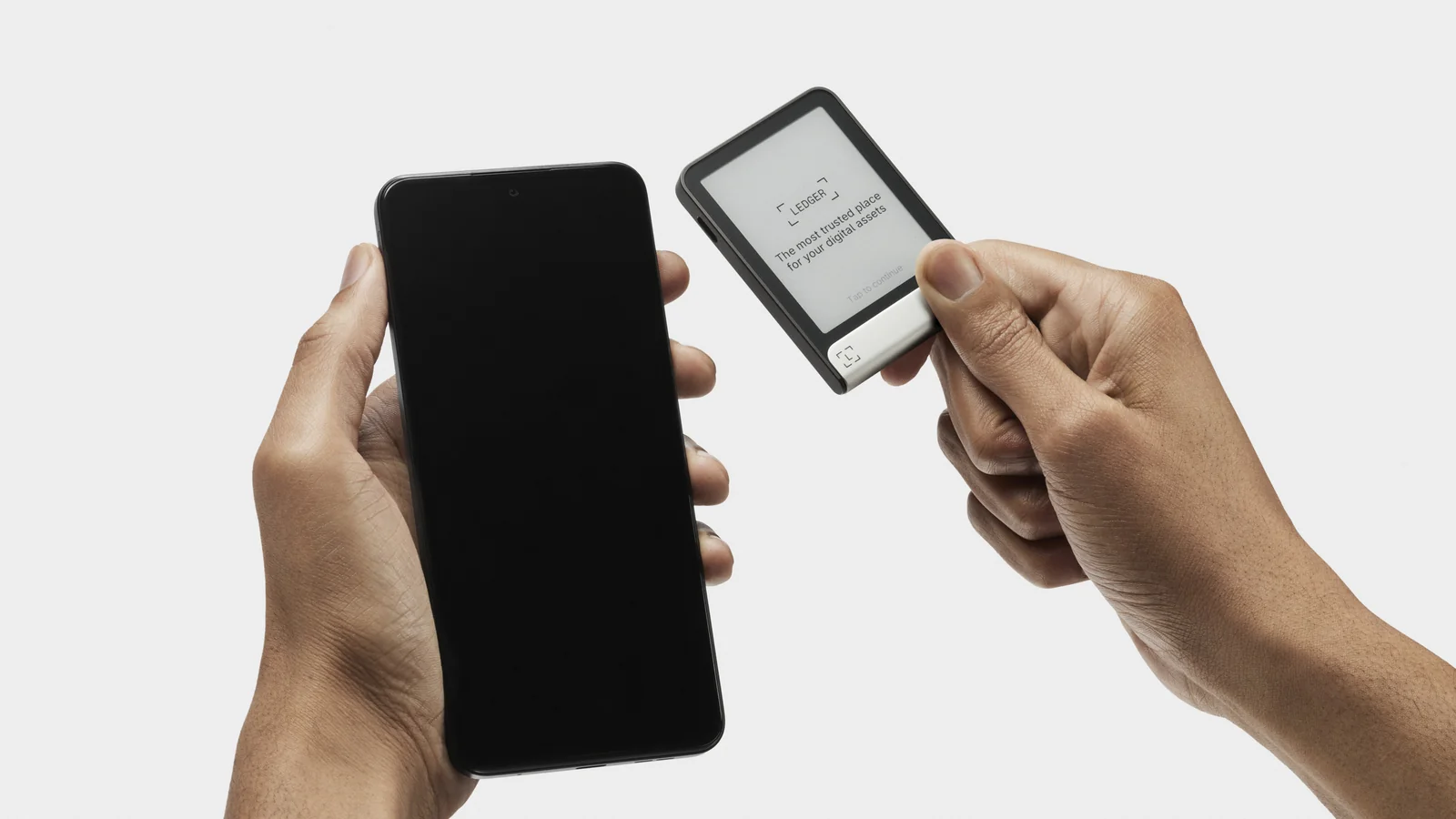
Next comes the part I care about most. Click “Verify” on desktop, or “Verify my address” on mobile, and the address appears on the Ledger’s screen. Go through it against the one in Ledger Wallet, every character.
Do they match? Approve it on the device. If there’s any difference, choose “Reject” and don’t send a thing to that address; on desktop the receive window won’t close until you’ve done one or the other.
Ledger describes its device display as “the only source of truth”, and I think that’s the right way to see it. Malware on a computer can replace an address with one that starts and ends with the same characters as yours, which is why a glance at the first few characters isn’t enough.
Step 6. Copy It, Paste It, Then Check It Again
Hit “Copy address” or “Share” and drop the address wherever it has to go, an exchange withdrawal form for instance. Then look at what you pasted and make sure it’s still the same string.
Ledger suggests clicking “Re-verify” on desktop once the address is pasted somewhere else. Mobile has “Verify your address” for putting it back on the device screen, and the X icon in the top right corner closes the window.
Step 7. Try a Small Test Payment Before Anything Big
Send a little first. Ledger tells you to confirm a small amount arrived before you move anything larger, and I wouldn’t argue with that.
After verifying, it’s fine to unplug the Ledger. Nothing travels to the device; the coins go to that address on the blockchain.
No device on you? There’s a “Don’t have your device?” option on the account screen that will still produce an address. Ledger admits that address doesn’t get the optimal level of security, since the device never checked it.
The Ledger Address Settings I’d Look At
Bitcoin is where these choices matter most. Ledger recognizes four Bitcoin address formats, and you can tell them apart by how they begin. Any BTC address is somewhere between 27 and 34 characters long.
| Address type (as of September 2026) | First characters | Why it matters |
|---|---|---|
| Legacy (P2PKH) | 1 | It’s the oldest of the four. |
| SegWit (P2SH) | 3 | It’s still in wide use. |
| Native SegWit (P2WPKH) | bc1q | New Bitcoin accounts in Ledger Wallet get this one. |
| Taproot (P2TR) | bc1p | You’ll see it once “Show all address types” is on. |
| Ethereum and other EVM chains | A single address for each account | Ethereum, Polygon, Base and Arbitrum all accept that one address. |
Moving BTC from one format to another causes no trouble. Every so often an exchange will only take deposits from a particular format, and in that case you’d add an account in that format.
Each time you receive bitcoin, Ledger Wallet gives you a new address to protect your privacy, and the older ones keep working. Ethereum, XRP and Stellar are different: your address there doesn’t change.
How Long Finding a Ledger Address Takes
The address part is quick. It’s mostly the time needed to connect the Ledger and read what’s on its screen, plus the account scan in Step 2, since Ledger asks you to wait until the scan has found every account before you pick one.
Getting paid is another matter, and it depends on the network. Ledger recommends 6 confirmations before you treat a bitcoin payment as received. I couldn’t find any timing figures from Ledger for exchange withdrawals, so I won’t guess.
Ledger Address Problems and How to Fix Them
- The Bitcoin address doesn’t match the one you used last time. Nothing’s wrong, since Ledger Wallet creates new addresses for Bitcoin-based coins and your old ones still work.
- An exchange withdrawal never appeared. Make sure the network you picked on the exchange is the one your Ledger account uses, for example Ethereum for ETH and ERC20 tokens.
- Your tokens went out over the wrong EVM network. Ledger says they aren’t lost as long as the address came from Ledger Wallet and was verified on the device, so open the TxID in a block explorer, see whether it’s Etherscan, BSCscan, Polygonscan or Arbiscan, and add the matching account.
- The network isn’t available in Ledger Wallet at all. Ledger’s workaround is to connect the device to MetaMask and add the network there.
- USDT you sent to a Tron account hasn’t shown up. Tron accounts have to be activated first.
- A “Mismatch between the copied address and the one in the clipboard” message pops up. Stop the transaction straight away and run a full malware scan on your computer.
- Installing the coin app fails. Remove apps you aren’t using to make room.
Safety Habits for Your Ledger Receive Address
- Believe the Ledger’s screen over whatever your computer or phone shows.
- Test with a small payment before a big one.
- Check the address with the sender another way too, over SMS, email or a messaging app.
- Keep “Don’t have your device?” addresses away from any amount you’d hate to lose.
- Nobody at Ledger will ever ask for your 24 recovery words. Keep them to yourself.
- Run malware scans on a regular basis, and keep your antivirus up to date.
- Going the other way and sending coins out? Read how to send Bitcoin to another wallet.
Ledger Wallet Address FAQ
Where’s my Ledger wallet address?
Open Ledger Wallet, go to Receive, pick the account, then confirm the address on your Ledger’s screen.
Will my Ledger address change?
Sometimes. Bitcoin gets a new one each time you receive, though the old ones still work, while Ethereum, XRP and Stellar keep a single address.
Do Polygon, Base and Arbitrum use my Ethereum address?
Yes. It’s one address across EVM chains, but whoever sends to you still needs to choose the right network.
Can I see my address when the Ledger isn’t with me?
You can, with the Don’t have your device? option. I’d avoid it for anything important, because Ledger says an address the device hasn’t checked doesn’t get optimal security.
Which Bitcoin address format should I pick on a Ledger?
Native SegWit, the one beginning with bc1q, is what Ledger Wallet picks by default, and sending BTC between formats works fine.
Do my coins sit on the Ledger itself?
No. They live on the blockchain. What the Ledger keeps is your private keys, and no coins ever get sent to it.
Wrapping Up: Where Your Ledger Address Lives
In short, Ledger Wallet shows your address under Receive, yet the version to trust is the one on the device’s screen. Put the coin app on, add the account, verify, copy, check again, then try a small payment.
Still picking a device? I’d read our Ledger vs Trezor comparison before buying.
This article is for general information only and is not financial, legal, or investment advice. Prices and features change; check the vendor’s official page before buying.